Main LogoLight Logo
  • Reviews
  • Top 10
  • How To
  • Tech News
  • OS
    • Windows
    • MAC
    • iOS
    • Android
  • Categories
    • Driver Updater
    • Cyber Security
    • Games
    • Fitness
    • Entertainment
    • Tips & Tricks
How To Windows
by Harshita

Quickly Fix Steam Disk Write Error on Windows 10

December 12, 2020
1

This post explains how to fix the steam disk write error on windows 10. So, read on to know the entire details!

Steam is a gaming platform for PCs where individuals can be amused by thousands of titles, download & install the latest updates automatically for their games, connect to discussions, and many more. During a game install or update, you may encounter the steam disk write error on Windows 10. This error shows the following message on screen-

  • An error occurred while updating the game_title.
  • An error occurred while installing game_title.

Apart from this, the error occurs because the corrupt hard disk, drive, or steam folder is write-protected, corrupt files in the Steam library, outdated drivers, and so on.

While waiting to install or update a game on Steam if you get a disk write error then you are not the only one who is encountering this error. There are numerous users as well who are struggling with this big headache. But, you are the lucky one as now it’s been quite an easy task to tackle. Yeah! You have heard right. So, let’s read them below in-depth!

Table of Contents hide
Quick Methods to Fix Steam Disk Write Error on Windows 10
Method 1: Restart your PC and Steam
Method 2: Launch Steam as Administrator
Method 3: Install Steam Games on Another Drive
Method 4: Turn off your Antivirus Program Temporarily
Method 5: Update Corrupt & Outdated Drivers
Method 6: Eliminate Disk Write Protection

Quick Methods to Fix Steam Disk Write Error on Windows 10

Are you getting a disk write error steam? If you are confronting so while updating or installing games like Counter-Strike, Dota 2, Grand Theft Auto V, The Witcher 2, etc, then, this post explains to you how to fix the same issue in no time. Therefore, without any further delay, let’s take a step towards the core section of this write-up!

Method 1: Restart your PC and Steam

At the very initial point, what you should try to fix the disk write error steam on Windows is – restarting your system and then Steam. Rebooting the system can possibly fix the errors unless the errors aren’t critical. So, start your system again, after that, open Steam and try to update or install the game. If the error still persists, then move to the next advanced methods.

Also Read: How to Fix Steam Download Slow [Solved]


Method 2: Launch Steam as Administrator

In many events, launching an application as an administrator has proven the best way, in order to fix the issue. Similarly, to fix the disk write error you can run Steam as Administrator. Follow the below-listed steps to launch Steam as Administrator-

Step 1:- Switch to your Steam folder and right-click on the Steam.exe, then click on Properties.

Step 2:- Then, from the pop-up window, head to the Compatiability tab.

Step 3:- After this, tick mark the box presented next to Run this program as an Administrator.

Step 4:- Lastly, click on the Apply option to validate the changes and then, click Ok.

Cope-up with the above series of steps to run the Steam as Administrator to resolve disk write error.


Method 3: Install Steam Games on Another Drive

After launching the Steam as Administrator, still, the error persists, then shift the Steam folder to another healthy & safe drive. Shifting the Steam folder to another safe drive is one of the most effective yet simple methods to troubleshoot the steam disk write error on Windows 10. Here is what you need to do to execute this method!

Step 1:- Link the destination source drive to your PC.

Step 2:- Trigger Steam, thereafter, select the games that you want to shift.

Step 3:- Then, shift the game to the destination source drive which you connected to your PC.

So, this is how to fix disk write error steam on Windows 10 by shifting the Steam games to another safe or healthy drive. Try this method and if you find this one too isn’t work for you then move ahead.

Also Read: Best Game Boosters and Optimizers for Windows PC


Method 4: Turn off your Antivirus Program Temporarily

Besides all this, your Antivirus program can be a culprit as well behind steam disk write error on Windows 10 while downloading, installing, or updating the games on Steam. In this scenario, you have to disable your antivirus program temporarily. Try to turn off your anti-virus program and see if this works or not.


Method 5: Update Corrupt & Outdated Drivers

Yet another core reason that not only shows up disk write error but can be the major reason for all the problems that hinder the effective working of the system. If you are accessing the outdated, broken, or corrupt drivers, then, you may encounter many odd issues on your system. Therefore, you need to keep your drivers always updated to its latest version. And, the most effective approach to perform this task is using a Bit Driver Updater. It is absolutely an automatic driver updater tool that requires nothing extra formalities to work. You just need to install this magnificent driver updater tool on your system and within a short series of steps, you can update your outdated or corrupt drivers. Here is how it works!

Step 1:- Download the Bit Driver Updater from the link given below and launch it on your system.

Windows Download Button

Step 2:- Once you have successfully downloaded the Bit Driver Updater, then you have to wait for a while unless the automatic scanning gets executed.

Step 3:- Now, review the list of the drivers quite wisely.

Step 4:- After this, click on the Update now option next to the driver which you want to update. Or, if you want to save much time, then click on the Update All option presented at the last of the list to update all the drivers in one go.

Just within the concise way, you can update & install the latest version of drivers using Bit Driver Updater.
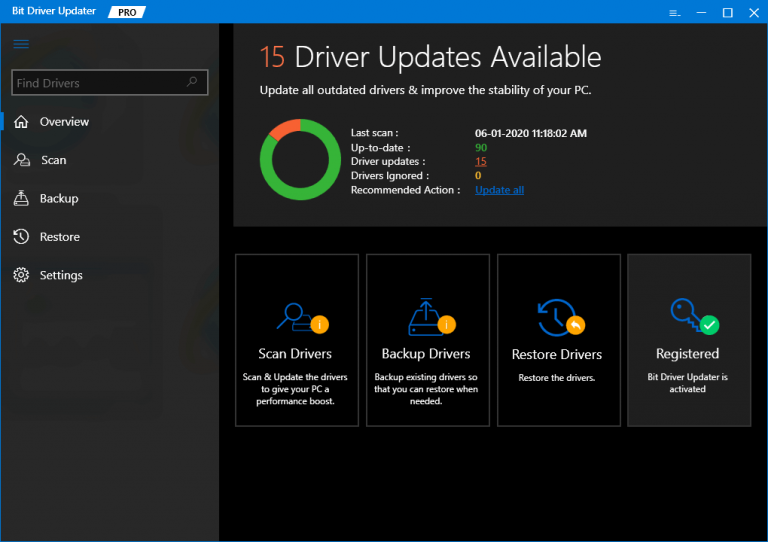
Bit Driver Updater software


Method 6: Eliminate Disk Write Protection

Maybe, because our disk is write-protected we are encountering a disk write error. It is might be possible, so to fix this error, we can eliminate the disk write protection. Here are the steps that explain how to do it!

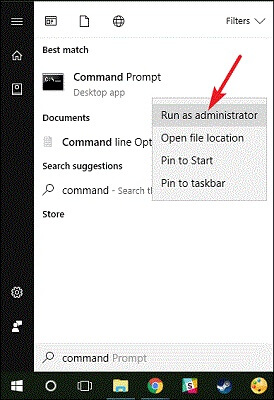
Step 1:- Hit the Win from the Keyboard. And, then type cmd.

Step 2:- Then, right-click on the best match i.e., Command Prompt. After this, click Run as Administrator.
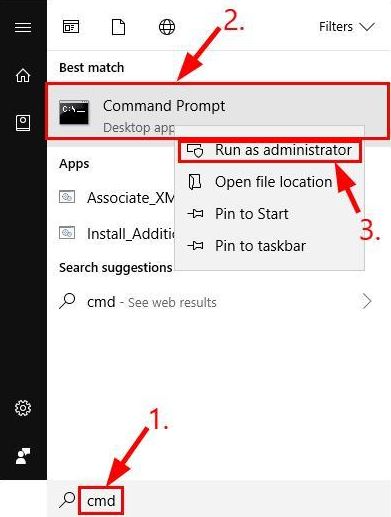
Type cmd in Start Menu Search Bar

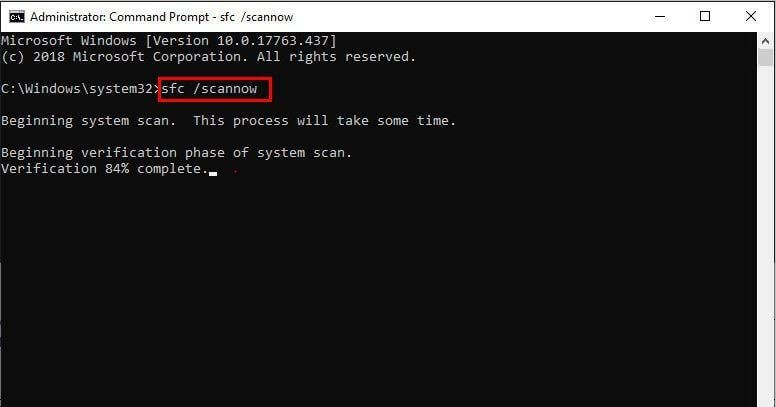
Step 3:- And, then input the following command and hit the Enter key after each.

diskpart

list disk

select disk #

attributes disk clear readonly
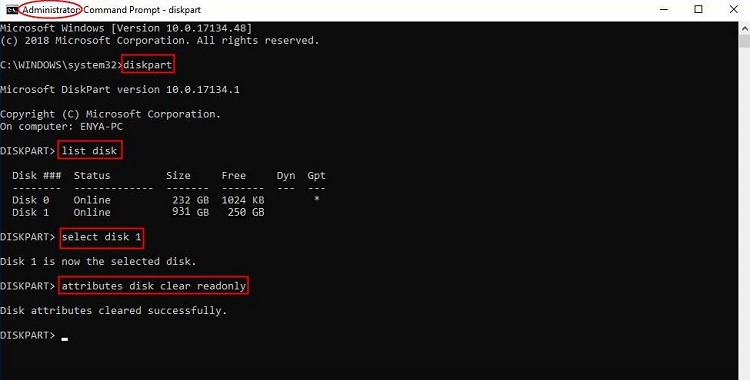
Disk Part Command

Step 4:- Now, turn off the Command Prompt window.

Thereafter, plug the hard drive again and check whether the disk write error has cornered or not.

Also Read: How to Update Drivers Using Command Prompt in Windows 10


Steam Disk Write Error on Windows 10 (Fixed)

This was all we want to explain to you by which you can easily and quickly fix the disk write error steam on Windows 10. It is quite a frustrating moment to encounter a Steam error because it snatches the enthusiasm of playing your favorite game. But, feel yourself lucky, as now you are aware of the methods to diagnose the same error.

Drop a comment in the comment box below and tell us your valuable words on this. If you liked our article then do subscribe to our Newsletter for more such helpful articles. Till the next, stay connected with us!

Author

Harshita

Harshita Sharma is a technical writer with quite a distinct understanding of the tech realm. She is a tech enthusiast who believes that tech knowledge should reach one and all and tries to convert the sketchy knowledge into the simplest possible form for making people understand the tech world better. When not playing with words, she loves to travel and explore new places. And, is a coffee & cricket connoisseur.

View all posts

Related Posts
Download-hevc-video-extensions-free-for-windows-11-and-10

Download HEVC Video Extensions Free For Windows 11 and 10

January 16, 2026
0

High-quality videos are becoming more common every day. From 4K movies and online streaming to smartphone recordings, modern videos look sharper and clearer than ever before. However, many Windows users face a common problem: the video won’t play. This usually happens because the video uses the HEVC (H.265) format, which is not always supported by default on Windows systems.

If you are using Windows 10 or Windows 11 and see an error while playing a video, don’t worry. The solution is simple. By installing HEVC video extensions free, you can easily play high-quality videos without changing your device or video player. These extensions help Windows understand and decide HEVC video smoothly.

In this blog, you will learn what HEVC is, why Windows needs extra support for it, and how to download HEVC video extensions free safely for Windows 10 and Windows 11. This guide uses simple and clear instructions so anyone can follow along without confusion.

What Is HEVC?

HEVC stands for High Efficiency Video Coding. It is a modern video format also known as H.265. This format is designed to give better video quality while using less storage space. Compared to older formats, HEVC can reduce file size by almost half without losing visual quality.

The HEVC format is widely used for high-resolution videos like HD and 4K. Many smartphones, digital cameras, drones, and streaming platforms record and stream videos in HEVC format. Because of this, HEVC has become very popular in recent years.

To play these videos on a computer, your system needs the HEVC codec. A codec is a tool that helps your computer understand and decode video files. Without the correct codec installed, Windows may not be able to open or play HEVC videos properly.

HEVC is especially useful for saving storage space and streaming videos smoothly over the internet. That is why having proper HEVC support on Windows 10 and Windows 11 is important for a better video-watching experience.


Why You Need HEVC Video Extensions

Many Windows users are surprised when a video does not play, even though it works fine on their phone or another device. This usually happens because the video is encoded in HEVC format, and Windows does not always support it by default.

Both Windows 10 and Windows 11 may lack built-in support for this format. When the system does not have the required HEVC codec, you may see an error message, a black screen, or hear audio without video. Installing HEVC video extensions free helps fix these issues by allowing Windows to decode and play HEVC videos properly.

You especially need HEVC video extensions free if you watch HD or 4K movies, record videos on modern smartphones, or download high-quality videos from the internet. Many devices now use HEVC because it offers better quality with smaller file sizes, but without the extension, Windows cannot read the video correctly.

Installing the HEVC codec Windows 10 version improves compatibility with built-in apps like Movies & TV and Windows Media Player. Similarly, HEVC codec Windows 11 ensures smooth playback on newer systems without needing extra software.

In simple terms, HEVC Video Extensions help your Windows computer understand modern video formats, prevent playback errors, and provide a smooth, high-quality viewing experience.

Also know: Best YouTube Video Summarizer with AI Technology


What Is a Codec?

Before going further, it is important to understand what a codec is and why it matters.

The word codec comes from compressor-decompressor. A codec is a small software tool that compresses video files to make them smaller and then decompresses them so they can be played on your device.

The HEVC codec is designed specifically to handle HEVC (H.265) video files. It helps your computer decode videos so you can watch them and encode videos when saving or editing them. Without the correct codec installed, your system cannot understand the video data, which results in playback errors or unsupported file messages.

This is why installing the right codec is important. When people talk about the HEVC codec Windows 10, they mean that Windows 10 needs this codec to properly play HEVC videos. In the same way, the HEVC codec Windows 11 ensures that Windows 11 can smoothly decode and play modern HEVC video files.

In simple words, a codec acts like a translator between the video file and your computer, making sure everything plays correctly and smoothly.


How to Download HEVC Video Extensions Free

Now let’s talk about the main topic — how to download HEVC video extensions free for Windows 10 and Windows 11. There are two safe and common ways to do this, using official Microsoft sources or trusted third-party options.

Method 1: Download from the Official Microsoft Store

Microsoft provides an app called HEVC video extensions in the Microsoft Store. This app adds support for HEVC videos and allows your Windows system to play files encoded in HEVC format.

There are usually two versions available, one is the official HEVC video extensions, this version is often paid. The other one is an HEVC video extensions from Device Manufacturer; this version may be free on many systems.

To try this method, open the Microsoft Store and search for HEVC video extensions. If you see a free or get button, simply click install. Once the installation is complete, your system will be able to play HEVC videos without errors.

In some cases, the free version may not appear directly in the Store search results. However, it can still be accessed using a special Microsoft Store link that opens the correct page for HEVC video extension free. These links are commonly shared on trusted tech websites.

Tip: If the extension shows a price, look specifically for HEVC Video Extensions from the device manufacturer. This version often appears as free on many Windows PCs and works the same way as the paid one.

Method 2: Safe Third-Party Sites

Some trusted websites provide installers for HEVC video extensions free that work on both Windows 10 and Windows 11. These are not cracked or modified tools. Instead, they use the same official HEVC files but make them easier to download when the Microsoft Store does not show the free option.

Be careful when choosing third-party sites. Always use reputable websites that are well-known in the tech community and avoid unknown or suspicious download pages.

After downloading the installer, simply open the file and follow the on-screen instructions. Once the installation is complete, you can start playing HEVC videos in your favorite video players and Windows apps.

Also know: Best Vocal Remover Online to Remove Voice from Video for Free


How to Install on Windows 10

If you are using Windows 10, installing the HEVC codec Windows 10 version is quick and easy. Follow these steps:

  • Open the Microsoft Store.
  • Search for HEVC Video Extensions.
  • Install the free version if available.
  • Restart your computer.
  • Try opening an HEVC video file.

After completing these steps, your system should be able to play HEVC videos without any errors. If the free extension does not appear in the Store, you can use a direct Store link or a trusted third-party installer as mentioned earlier.


How to Install on Windows 11

The steps for installing the HEVC codec Windows 11 version are very similar to Windows 10:

  • Open the Microsoft Store.
  • Search for HEVC Video Extensions.
  • Look for the free HEVC Video Extensions from Device Manufacturer version.
  • Install the extension.
  • Restart your computer.

On Windows 11, HEVC support is still not included by default on all systems. Installing this extension allows built-in apps like Movies & TV and Windows Media Player to play HEVC videos smoothly without any playback problems.

HEVC is a modern video standard used by many devices and streaming platforms. Watching these videos on Windows should be easy, and installing the right tools makes that possible.

Best Color Pickers for Windows

11 Best Color Pickers for Windows 10, 11 in 2024

December 29, 2023
0

You may use the color picker tools for Windows listed in this article to choose the perfect color shades for your artwork, website, or other projects.

The world is a color palette. All around us, there are numerous colors in their various shades. Apart from the 12 basic colors, there are innumerable variations of these hues, often it becomes challenging to recall them.

If you wish to make your artwork more aesthetically pleasing, you may use the right shade of color and a combination of colors to add to its attractiveness. However, accurately picking the right color from the spectrum of colors is quite difficult.

Hence, the best color picker for Windows comes in handy to help you identify various color shades precisely from any image or screen to use for your project. Let us move toward the same without any further ado.

List of the Best Color Pickers for Windows in 2024

The following are the best Windows 10 color pickers to help you select the right color and shade of color you may have seen previously on a picture, website, etc. to enhance the look of your project.

1. ColorPic

ColorPic

Made by Iconico, ColorPic is among the best color picker software for Windows 10. Web designers often use ColorPic to create stunning websites. You may use this software to point at and select any color on a high-resolution monitor.

Moreover, ColorPic allows you to use palettes of 16 colors at a single time. Furthermore, this software lets you adjust hue, saturation, blues, reds, and greens.

Additionally, there are four high-end color mixers to adjust colors, a magnification area you can resize, and usability with other programs.

Get it Now

Also Read: Best Graphic Design Software for Designers


2. Microsoft Free Color Picker

Microsoft Free Color Picker

Windows 10 comes with an in-built Microsoft Free Color Picker you can use to select colors from a photo or a screen.

You can access this tool simply by pressing the Win+Shift+S shortcut keys to capture a screenshot and then using the main window’s clipboard button to select your desired color.

Moreover, the best thing about this software which makes it one of the top screen color pickers for Windows 10 is that it lets you choose colors in CMYK, Hex, HTML, HSL, and RGB formats.

Furthermore, you can select an image through the screen capture tool, clipboard, or a disk’s image file.

Get it Now


3. Just Color Picker

Just Color Picker

Let us now introduce you to Just Color Picker. It is yet another worth-downloading color picker for Windows 10. The application boasts a simple and clean interface that allows you to view the chosen color with the magnifier at all times.

Additionally, the application comes with support for over 10 color formats and you can choose from RGB, CMYK, HTML, HEX, etc. The software adds all chosen colors to the palette and lets you export or save them to use later.

Furthermore, with Just Color Picker, you can provide additional information about the selected colors through comments and adjust the colors through HSL, RGB, or HSV adjustments.

It is also worth noting that the software supports a gradient view to choose from a wide variety of colors, RYB, and RGB color wheels.

Get it Now

Also Read: Best Free Flowchart Software for Windows and Mac of All Time


4. Instant Color Picker

Instant Color Picker

If you are looking for a color picker tool for Windows 10 with a visually appealing and modern UI, you can choose Instant Color Picker. You may click on any color and select it effortlessly using this tool.

In addition to it, there is a magnifier to zoom 8x to easily view the color code even before selecting the color. As far as color sampling is concerned, you get 5×5 or 3×3 single-pixel sampling.

Moreover, there are 20 colors in every palette, you can click on saved colors to view more details about them. These details consist of color variations and codes.

Furthermore, the software lets you adjust the selected color’s saturation/lighting. Additionally, there is support for keyboard shortcuts and formats like RGB, CMYK, HSV, HSL, ActionScript, Hex, HTML, Delphi, VB, and VC++ color formats.

Get it Now


5. CP1

CP1

Next, we have CP1 on our list of the best color pickers for Windows 10. It boasts a simple and modern interface that even amateur users can use effortlessly. To copy a color code with this software, you only need to select it.

Moreover, the application supports HTML hexadecimal and RGB formats, along with a magnifier for precise color selection. Furthermore, there are wide and narrow color palettes to get various shades of the chosen color.

Additionally, CP1 also comes with a history palette to save all your chosen colors and an option to export the color palette or save it as a .json or .txt file.

Get it Now


6. Pixie

Pixie

Let us now take a look at Pixie. It is yet another wonderful color picker tool for Windows 10. It is a simple application with a variety of features, such as shortcut support for color picking.

On the main window, you can view HSV, HEX, CMYK, and RGB color codes of the presently chosen color. You should note that Pixie allows you to use the chosen color in any application by simply copying the color’s hex value through the shortcut key. Additionally, there is a magnifier to make color selection easier.

Get it Now


7. ColorPix

ColorPix

It is impossible to skip ColorPix when discussing the best color pickers for Windows. The software boasts a magnifier that zooms up to 1600% to help you choose the desired color effortlessly.

Moreover, this easy-to-use application lets you choose a color by hovering over the desired color and pressing any keyboard key. After selecting the color, you can view and copy its HEX, CMYK, HSB, and RGB codes to use the color in any application.

Get it Now

Also Read: Best Free Drawing Software/Programs For Windows


8. GetColor

GetColor

Next, we have GetColor as the best Windows 10 color picker. With this simple and easy-to-use application, you can select a particular color using the drag-and-drop tool.

After selecting the color, you may effortlessly copy the color’s code to the clipboard and use it in another application. Talking about the format, GetColor supports colors in RGB HTML, RGB Hex, and RGB Decimal formats.

Additionally, this application lets you preview the chosen color, adding to the reasons GetColor is a popular screen color picker for Windows 10.

Get it Now


9. Color Cop

Color Cop

We have Color Cop in the second last position on this list of the best color pickers for Windows 10. It comes with a beginner-friendly interface and a drag-and-drop tool to help you select colors.

Moreover, there is an in-built magnifier that lets you choose any color you wish with accuracy. Furthermore, Color Cop boasts 16x zoom support, automatic copying of the selected color code, web-safe colors, and a color mixer.

As far as color codes are concerned, Color Cop comes with support for Delphi hex, HTML hex, and six other formats. And for sampling, you get 5x5px, 3x3px, and 1px options.

Get it Now


10. Hex Color Finder

Hex Color Finder

Lastly, we would like to introduce you to Hex Color Finder. It is among the most downloaded color pickers for Windows 10 due to its simple UI and drag-and-drop color selection.

Moreover, Hex Color Finders lets you effortlessly adjust the red, blue, or green amount after picking a color. Furthermore, there is a gradient that allows you to select from a wide range of colors.

Additionally, you get a color palette to store over 30 colors for future use, preset creation for switching between various palettes with one click, and many color customization options.

Get it Now


11. Instant Eyedropper

Instant Eyedropper

Instant Eyedropper is another free color picker tool for Windows 10 that can quickly detect and save any type of color with just a single click. With this tool, you can not only find and copy the color but also identify the color code. It supports all major formats including HEX, HTML, Visual Basic Hex, RGB Float, RGB, HSL, Long, HSV (HSB), Delphi Hex, and more.

To use this free color detection tool, all you need to do is simply install it on your system. Once installed, then click the instant eyedropper icon available on the bottom toolbar and hover your mouse over the area you want to copy. That’s it! Now, the clipboard will have the color code in HTML format, which can be pasted and utilized in any HTML editor or text.

Get it Now

Also Read: Best Canva Alternatives for Graphic Design


Concluding the Best Color Pickers for Windows

In this article, we listed the top Windows 10 color pickers. You may go through the above list and choose the one that perfectly fits your requirements.

If you have any suggestions, questions, or confusion, you may contact us anytime through the comments section. We will return soon with another useful article, until then you may read our other posts to dive deeper into technology.

1 Comment
    [Solved] Inaccessible Boot Device Error On Windows 10 says: Reply
    December 28th 2020, 1:20 pm

    […] Read More: Fix Steam Disk Write Error on Windows 10 […]

Leave a Reply Cancel reply

Your email address will not be published. Required fields are marked *

Sidebar Image bit G ad1

Latest Posts

  • Anytime Astro: Best Website For Online Astrology Consultation
    Anytime Astro: Connect Now For Online Astrology Consultation
    by Somya Shrimal / March 13, 2026
  • Best-Ways-to-Combine-Images-Into-PDF-Files
    Best Ways to Combine Images Into PDF Files
    by Niharika / March 12, 2026
  • Best FREE VPS Hosting Providers
    7 Best FREE VPS Hosting Providers in 2026
    by Devesh / March 12, 2026
  • Best-McAfee-alternative-software-to-use-for-Virus-Protection
    Best McAfee Alternative Software to use for Virus Protection
    by adminuser / February 11, 2026
  • What-is-Flip-Flop-in-Circuite-and-it's-Types
    What is Flip Flop in Circuit and its Types
    by Meet / February 6, 2026

Categories

  • Cyber Security
  • Driver Updater
  • Entertainment
  • Fitness
  • Games
  • How To
  • laptop
  • OS
  • Reviews
  • Tech News
  • Tips & Tricks
  • Top 10
Sidebar Image bit G ad1
How-to-Solve-Discord-overlay-not-working-on-Windows-PC How to Solve Discord Overlay Not Working on Windows PCby Harshita / December 11, 2020
How to Access Steam Screenshots on Windows 10by Jyotsana / December 13, 2020Tips-to-access-steam-screenshot-folder-on-Windows-10-PC
TechPout Footer Logo

We at TechPout promise to put forth stories that help people to learn and simplify their digital life. Our purpose is to share the true essence of technology with our tech-loving community.

Useful Links

  • About Us
  • Contact us
  • Privacy Policy

Popular Posts

  • Best PC Optimizer Software
  • Best Mac Cleaner Apps
  • Best Driver Updater
  • Duplicate Photo Finder and Cleaner Software
  • Best Free Movie Download Sites
  • Best IPTV Players

Follow us

Copyright © 2026 www.techpout.com. All rights reserved
DMCA.com Protection Status