Main LogoLight Logo
  • Reviews
  • Top 10
  • How To
  • Tech News
  • OS
    • Windows
    • MAC
    • iOS
    • Android
  • Categories
    • Driver Updater
    • Cyber Security
    • Games
    • Fitness
    • Entertainment
    • Tips & Tricks
MAC Top 10 Windows
by Prachi Dani

12 Best MP3 Duplicate Songs Finder And Remover (Windows & Mac)

January 4, 2024
1

Maintaining a well-organized music library is quite a tiresome task and removing duplicate mp3 files manually can be even more tiring and boring. In such scenarios, you need a dedicated duplicate mp3 finder app. 

These tools are programmed to scan, detect and delete duplicate MP3 audio files in selected folders or drives. This not only declutters your library but also frees up space and better organizes your music collection.

Are you wondering which is the simplest and the easiest way to remove thousands of duplicate music files in iTunes and Windows devices, then keep reading ahead to learn about some of the best apps to find and delete duplicate MP3 files.

Table of Contents hide
Best Duplicate Music Files Finder For Windows and Mac in 2024
1. Cisdem Duplicate Finder
2. Clone Spy
3. Duplicate Detective
4. Similarity
5. Gemini 2
6. Easy Duplicate Finder
7. AllDup
8. Rinse Duplicate Songs
9. Duplicate Music Files Finder
10. DupeGuru
11. Duplicate Filter
12. SearchMyFiles
Manage Your Music Library in Style

Best Duplicate Music Files Finder For Windows and Mac in 2024

Stay tuned to find out the best MP3 duplicate songs finder tool for yourself. 

1. Cisdem Duplicate Finder
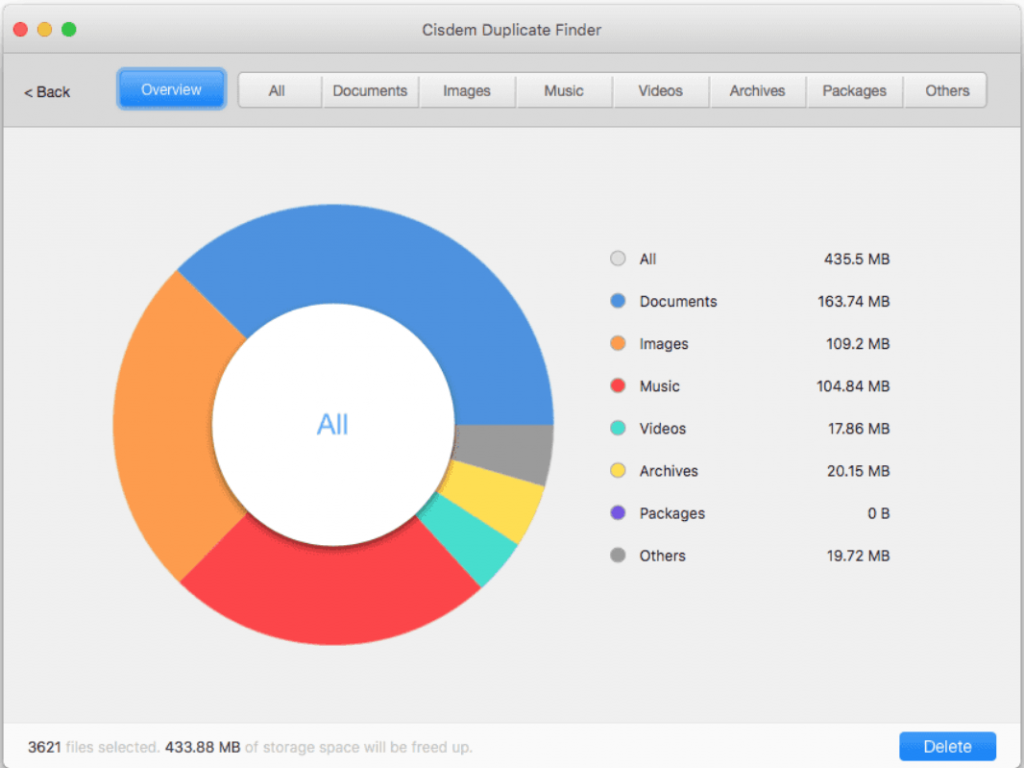
Cisdem Duplicate Finder - Best MP3 Duplicate Songs Finder
Image Source: Cisdem

If you are looking for a versatile and the best duplicate finder for Mac, then Cisdem is the tool for you. It is an easy-to-use tool and can support multiple types of files and formats. 

It can seamlessly scan the internal hard drive along with other supported devices to eliminate duplicate files on your Mac. Use it to remove duplicate MP3 music from:

  • Use Cisdem to get rid of duplicate files from your mac device, USB flash drive, One Drive, external HD, Google Drive, etc. It can even delete duplicate music files from iTunes.
  • It is fully compatible with multiple formats including MP3, FLAC, AIFF, etc.
  • Scan and remove unwanted music pieces in a single click.
  • For better system scanning it also allows you to exclude various folders and drives.

The best part of this incredible tool is that it provides you with a preview of selected files before deleting them. 

Read More: 15 Best Duplicate Photo Finder and Cleaner Software for Windows


2. Clone Spy
Clone Spy - Best Duplicate Music Files Finder Software
Image Source: Clone Spy

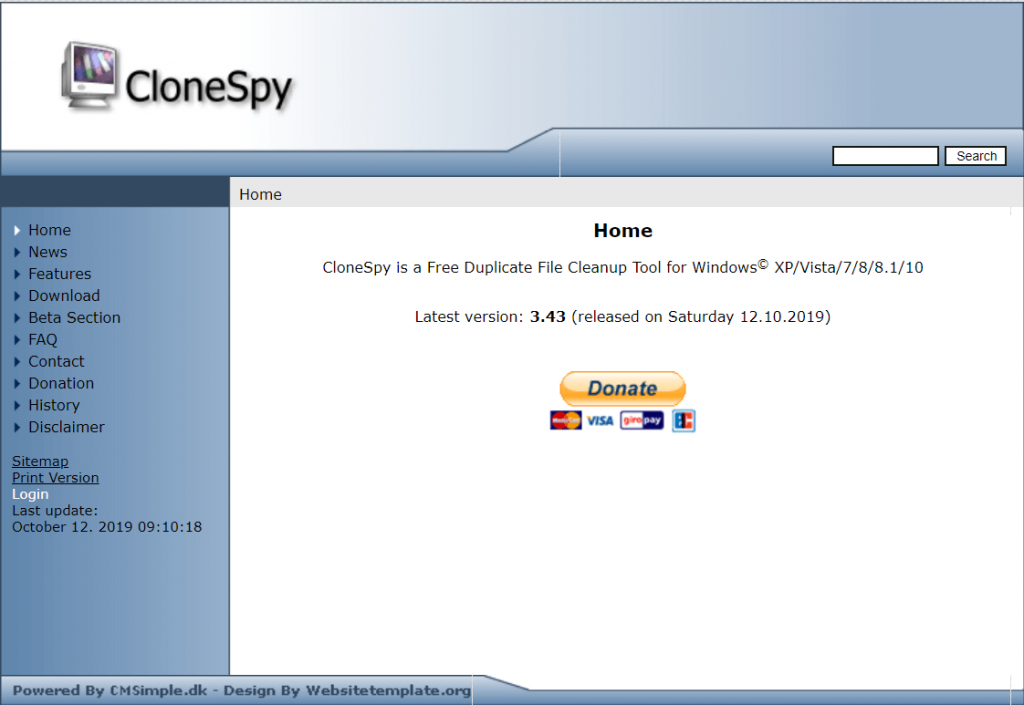
Clone Spy is one of the best duplicate music files finder software available for Windows 10, 8.1, 8, 7, XP and Vista. It is a free application that can detect and delete duplicate music files smoothly within seconds. Its clean and convenient interface along with a straightforward design makes it a highly recommended option. 

It can easily detect duplicate content depending on their name, time. Location, date, older and newer versions of the same file along with zero-length files. 

Scanning Procedure: 

  • It uses various search criteria and scanning methods.
  • It allows you to perform a customized search. For example, you can limit your search to a specific location of your device, set the minimum/maximum size of files to be included in the search results.
  • Once you have selected your search criteria, Clone Spy will perform a system scan and display a detailed list of detected duplicate files

3. Duplicate Detective
Duplicate Detective - Best Duplicate Dinder For Mac
Image Source: App Store

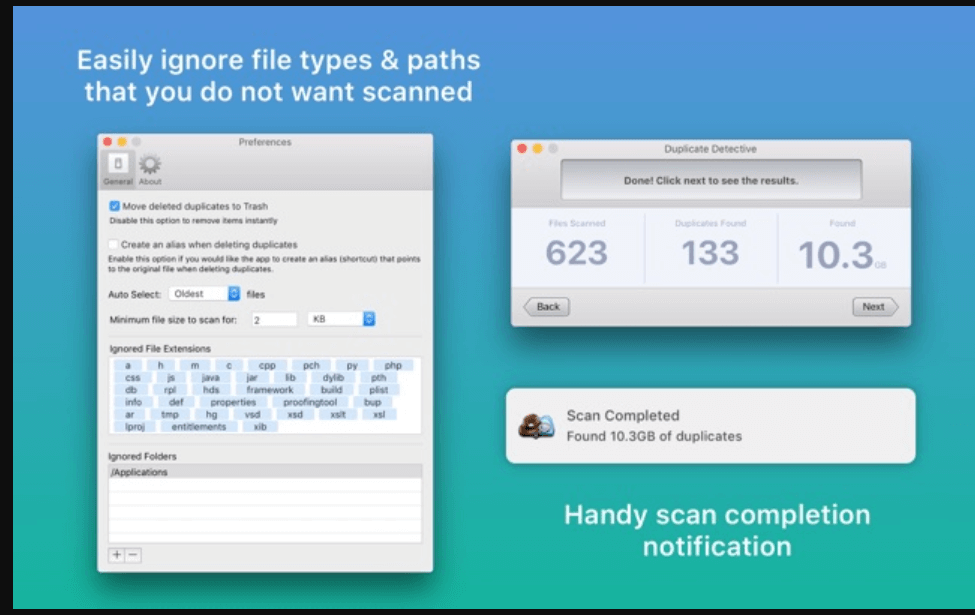
Designed in a handy package, Duplicate detective is one of the best music duplicate removers that one can currently find in the market. It enjoys a user rating on 4+ and has been awarded the title of “Mac Gem” by Macworld. It comes with a comprehensive interface that can easily scan and detect similar files. 

With its drag and drop mechanism, you can easily customize and limit your search limits and decide what you want to keep and what you want to delete.

  • It comes with a powerful and accurate algorithm.
  • It can easily locate duplicate files, images, archives, audio’s on your hard drive along with the network volumes and external drives.
  • It is capable of surfing various files based on their name, age, type, and size. 
  • To avoid any data loss, all the deleted files are moved to the recycle bin, giving you an option of recovery if necessary. 

4. Similarity 
Similarity - Best MP3 Duplicate Songs Finder Tool
Image Source: Similarity

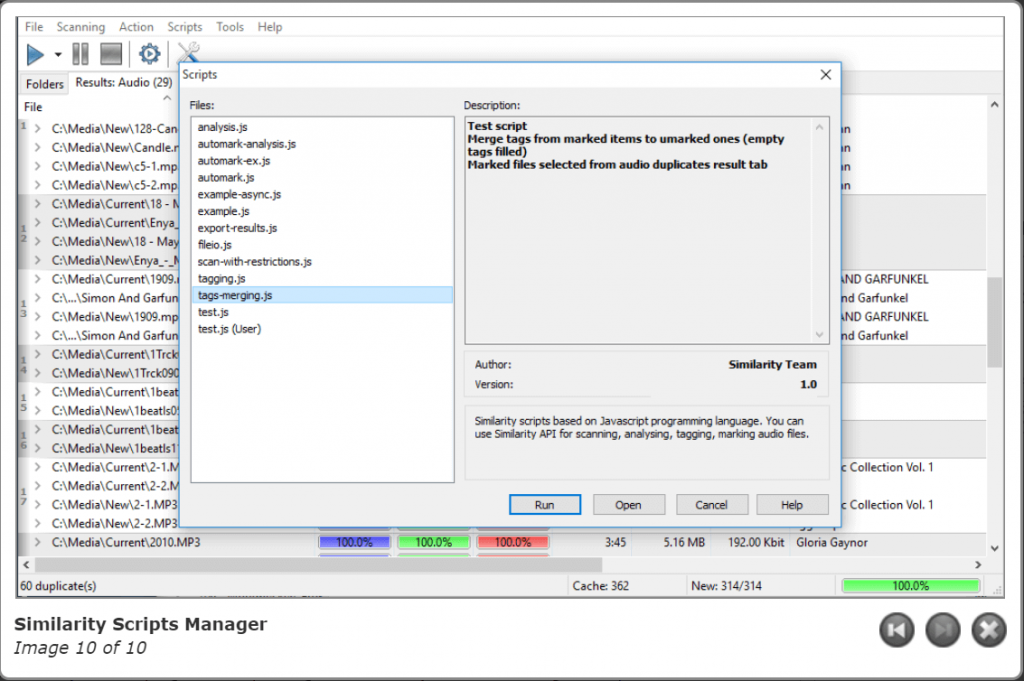
Are duplicate files and folders cluttering your system? Find out the best MP3 duplicate songs finder tool to keep your hard disk organized. It provides a hassle-free way to refine your image and music gallery. It offers multiple options that give you enough flexibility to customize your search criteria. 

For unmatched results, it uses an “Acoustic fingerprint” technology which can easily detect the original files along with its duplicates. Once you have the entire list of duplicate files, you can delete them one by one or perform a bulk task.

The tool can support multiple file-formats including AAC, WMA, WAV, OPUS, MP3, M4A, etc and is well known for its high level of duplicate file detection capabilities.


5. Gemini 2
Gemini 2 - Best music duplicate remover
Image Source: InsMac.org

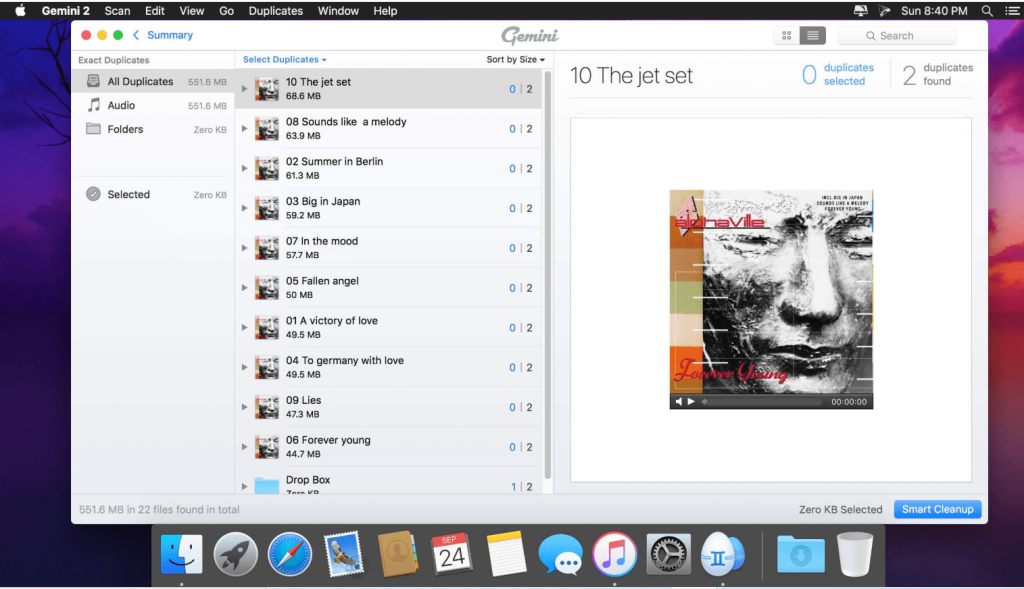
Is your Mac loaded with hundreds and thousands of music files? Organize your music library with this best music duplicate remover and free up to gigabytes of storage space within a few seconds. With its smart selection algorithm, Gemini 2 can easily detect and remove similar and duplicate MP3 music from every corner of your Mac device. 

It is developed by MacPaw and can effortlessly manage your music and photo gallery. 

  • It can delete duplicate photos, iTunes.
  • It can also scan your system for similar files. 

It enjoys a rich customer base and is available in around 12 different languages. 

Read More: 12 Best Photo Editing Apps & Software For Mac in 2020


6. Easy Duplicate Finder
Easy Duplicate Finder
Image Source: Easy Duplicate Finder

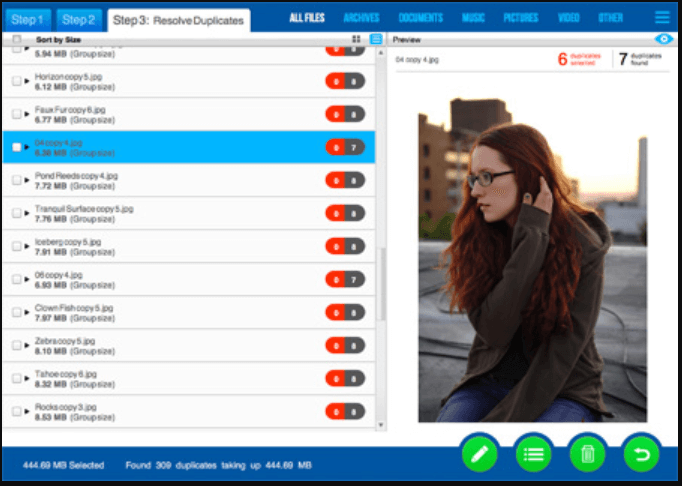
Removing duplicate music from your Windows 10, 8, 7 or Mac devices with Easy Duplicate Finder is a child’s play. It is powered with an effective working mechanism and predefined filter masks that can easily scan your system for similar and duplicate files. 

It allows you to limit your search to specific locations of your device and can detect duplicate music files and photos based on the CRC32 method and byte-by-byte detection. Scan your hard drive along with removable drives with this best music duplicate remover. Make space for new songs and audio files by getting rid of dupes and unwanted files. 


7. AllDup
AllDup - Best Duplicate Music Files Finder Software
Image Source: PCWorld

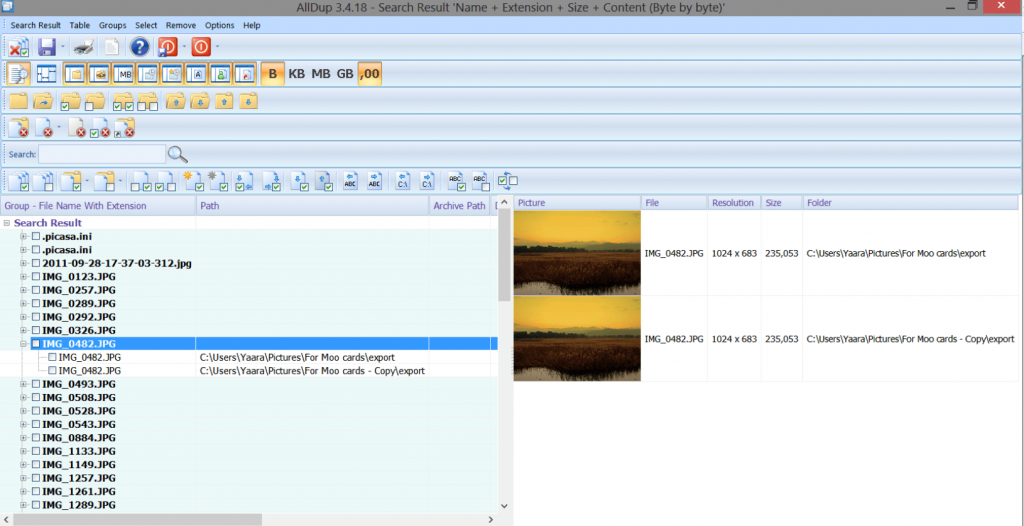
Don’t know which software can remove duplicate mp3 songs? Try Alldup to get answers to all your related queries. Enjoy a music library free from similar and duplicate files with AllDup. This power-packer tool can easily get rid of unwanted mp3 music, files songs, and music within a few seconds. 

More than your hard drive it can also clean and organize your files on your iPod, iTunes, and other removable drives. Try this freeware tool to remove duplicate MP3 files from your Windows device. 


8. Rinse Duplicate Songs 
Rinse Duplicate Songs
Image Source: Mac Genius

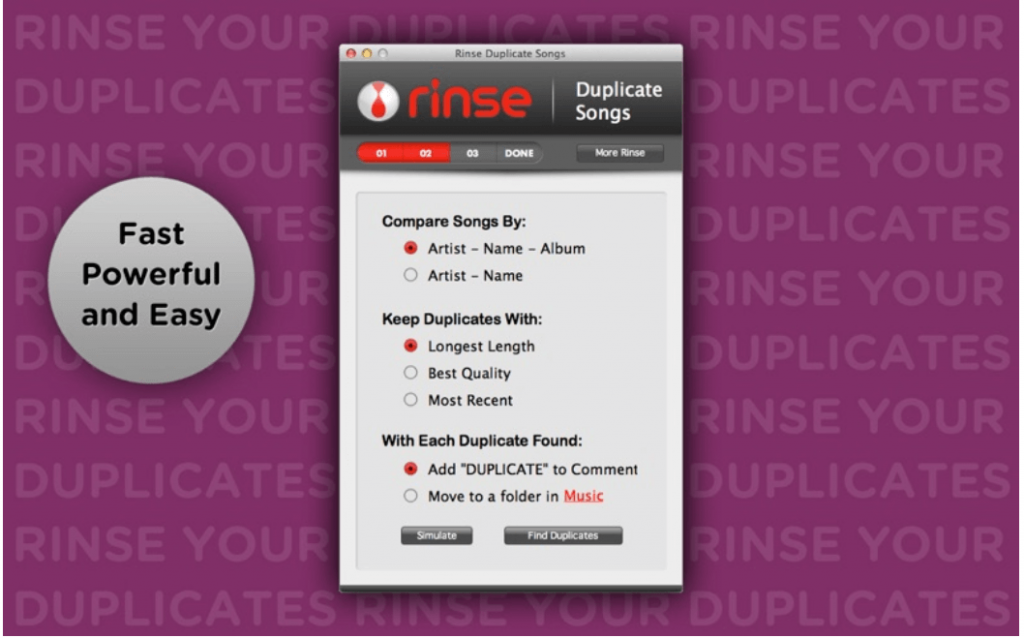
Developed by GameHouse, Rinse Duplicate songs is a powerful and feature-rich tool that you can try to organize your music gallery. It offers the easiest way to remove thousands of duplicate songs in iTunes.

It comes with a user-friendly interface and easy working mechanism. With its smart search engine, it can also detect misspelled files and flag all duplicate files for your review before deleting them. This will prevent you from deleting your favorite music files and fix your music library in a hassle-free manner.


9. Duplicate Music Files Finder
Duplicate Music Files Finder
Image Source: Duplicate Music Files Finder

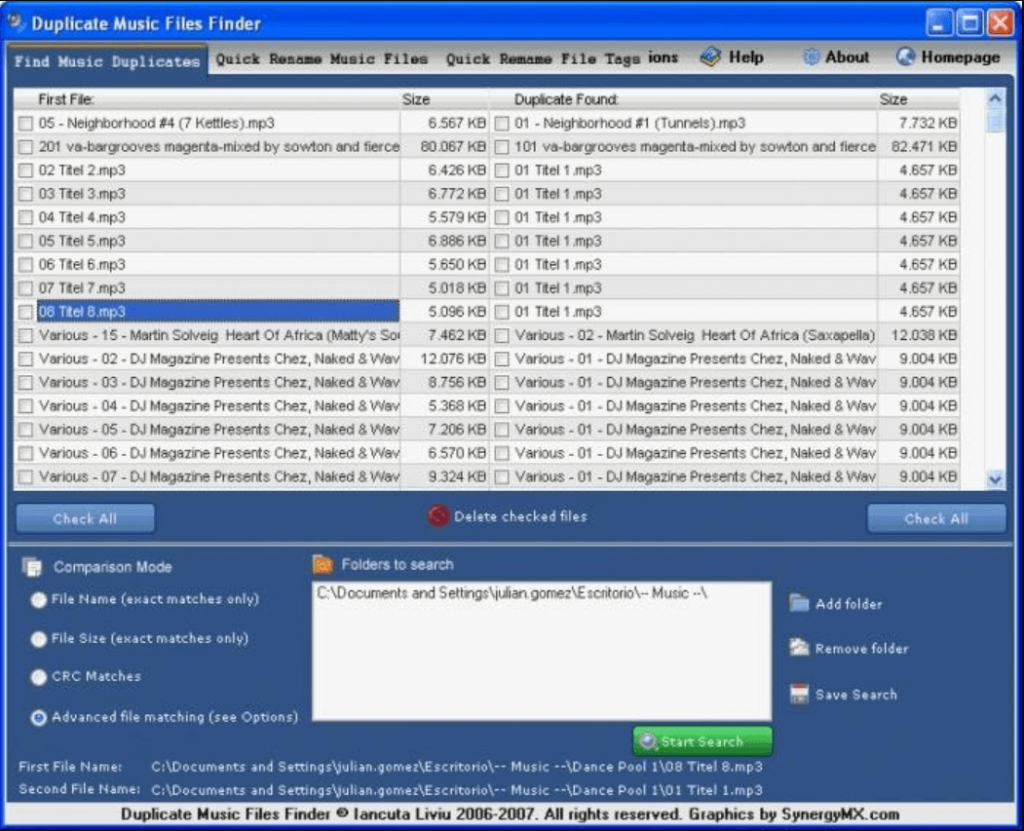
Finding duplicate files manually can be a troublesome process, but with Duplicate Music Files Finder you don’t have to worry about your ever depleting memory space. This powerful tool can easily pinpoint duplicate files and remove them in a single click. 

Repeated music tracks can degrade your experience and make your library a complete mess. Cut out the garbage on your machine with this best MP3 duplicate song finder. Apart from this it can also get rid of redundant files and scan your device for misspelled tags, bad files, and correct them within seconds. 

Read More: 10 Best Free Music Making Apps to Make Your Own Music


10. DupeGuru
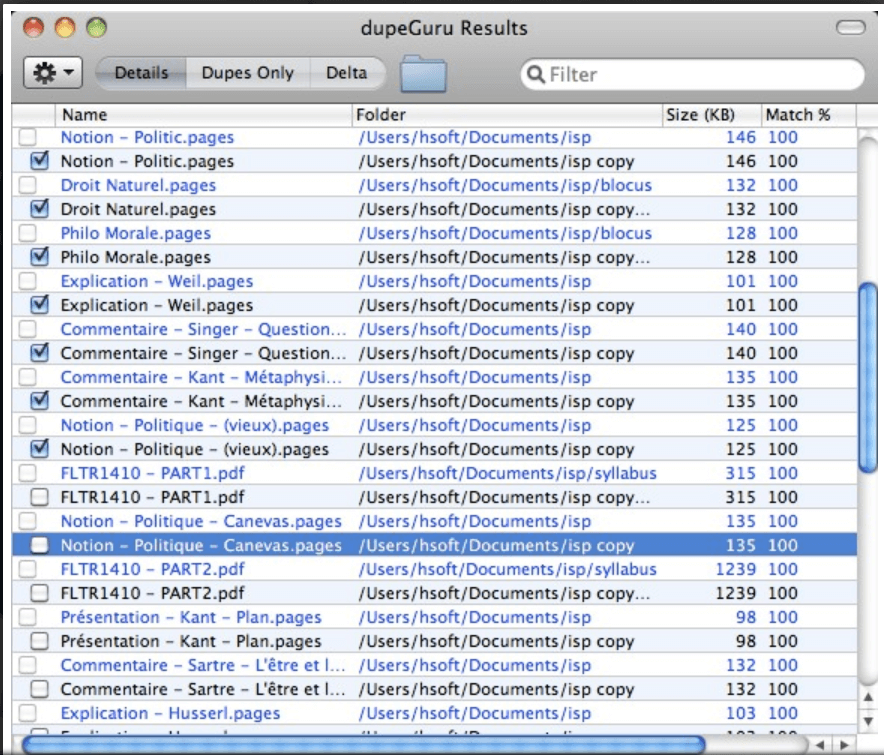
DupeGuru - Best MP3 Duplicate Songs Finder
Image Source: Alternativeto

Still, struggling with a cluttered music and photo library? Pick dupeGuru to find and remove duplicate files from your device. It is a cross-platform tool to remove duplicate MP3 files and is fully compatible with Windows, Linux, and Mac OS. 

It uses an intelligent algorithm and can find our duplicate files even if they are not the same. Its matching engine can be easily customized to match your search criteria. Apart from detecting duplicate files, it can also help you move and copy various files. 


11. Duplicate Filter
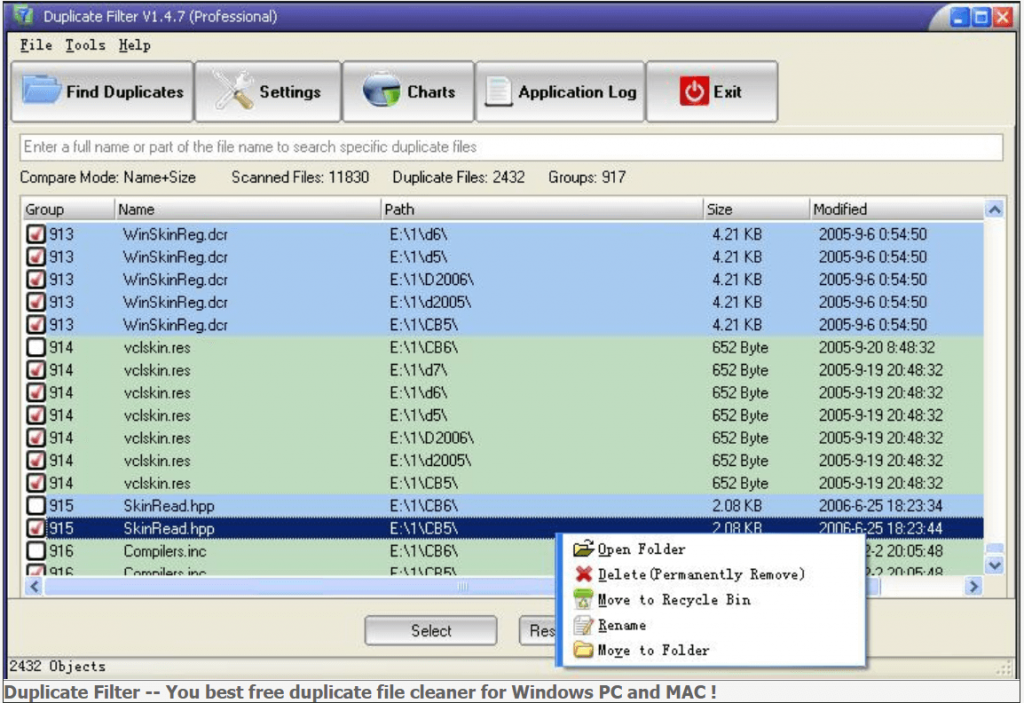
Duplicate Filter
Image Source: Duplicate Filter

Last on our list of best apps to find and delete duplicate MP3 files is duplicate filter. With this feature-rich tool, you can effortlessly scan, find, compare, and remove similar and duplicate files from your device. 

You can use varying degrees of similarity to spot similar files or those which look like a specified file. In addition to mp3 files, you can also remove, rename, and move other files including photos, videos, images, etc. 


12. SearchMyFiles
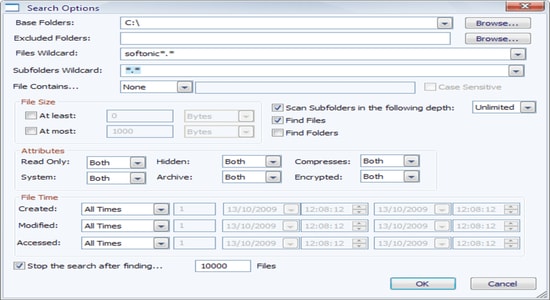
SearchMyFiles
Image Source: SearchMyFiles

If you are still unable to delete duplicate songs or want another alternative to the best MP3 duplicate songs finder above, then you can take the help of SearchMyFiles. This tool works like a File Explorer, but better. With the help of the software, you can look for any type of dumpsites, including MP3 files. All you need to do is specify the dynamics of your duplicate search and then conduct the search. From the results, keep or delete duplicates as suited.


Manage Your Music Library in Style

Declutter your music library with the best MP3 duplicate songs finder. Although you can spot and delete duplicate files manually, doing this can be a highly tiresome process. Experts recommend an automated process to remove duplicate MP3 files.

Refer to our guide to learn about the best duplicate music files finder for Windows 10 and Mac and pick the best suited tool for yourself.

Author

Prachi Dani

Prachi Dani is a technical content writer who specializes in areas of science and technology. She is highly up to date with technological transitions and transformations. Writing is not her passion but the only thing that carries satisfaction in life. If not writing, you may find her engrossed playing action games on her treasured smartphone.

View all posts

Related Posts
How to Fix Far Cry 6 Crash on Windows PC {SOLVED}

How to Fix Far Cry 6 Crash on Windows PC {SOLVED}

October 15, 2021
0

In this write-up, you will learn how to fix Far Cry 6 crashing on Windows 10, 8, 7 PC. For better insights, go through the entire tutorial.

Do you like to play first-person shooting games on PC? If yes, then Far Cry would be your most preferred game of the same genre. Didn’t it? Far Cry is a first-person shooter action-adventure game, published by Ubisoft.

Recently, the Far Cry series released its 6th and main installment. Undoubtedly, the game is a masterpiece but still runs into some crashes while launching it. And, it is also common to experience game crashing, lagging, black screen, stuttering, and screen tearing issues while playing a newly released game. If you are also getting random crashes, don’t worry, you can fix the inconvenience, easily and quickly.

What Causes Far Cry 6 Crashes?

Below are the major factors that can be responsible for constant Far Cry 6 crashes, check them out:

  • Outdated, broken, or faulty graphics drivers.
  • Enabled overlays.
  • Interfering applications.
  • Lack of administrative privileges.

Possible Workarounds to Fix Far Cry 6 Crashing on Windows 10, 8, 7 PC

Below, we have put together a few strategies that help you fix Far Cry 6 crashing on Windows PC. Though you do not need to give all of them a try, just make your way through each and choose the one that suits you best. Now, without further ado, let’s read them!

Solution 1: Update your Graphics Driver

If you are using outdated, faulty, or broken graphics drivers, then you will experience crashes while playing Far Cry 6 on Windows PC. Therefore, to make sure best-ever performance in the game, you should always keep your graphics card drivers up-to-date.

You can update your GPU drivers either manually or automatically. To update drivers manually, you need to visit the official website of your graphics card manufacturer like NVIDIA, AMD, etc. And, then searching for the latest or correct drivers online. But, if in case, if you have no time, patience, and required technical skills to download and install the drivers manually, then you can do it automatically with Bit Driver Updater.

Bit Driver Updater is an all-in-one solution to fix all faulty drivers with a single click of the mouse. The software boasts numerous features like automatic updates, performance booster, single-click driver update, 24/7 technical assistance, and more to provide complete ease of use to its users. The software also has a built-in auto backup and restores wizard. Follow the steps below download, install and update graphics drivers via Bit Driver Updater:

Step 1: Download Bit Driver Updater.

Download Button

Step 2: Run its executable file and follow the onscreen instructions to get the driver updater installed on your PC.

Step 3: Launch the Bit Driver Updater on your PC and wait until it scans your machine.

Step 4: Once the scanning is completed, review the scan results and click on the Update Now button presented next to the problematic graphics drivers.

Step 5: Else, you may also click on the Update All button to update the other drivers as well along with the graphics drivers.

Update All Driver with Bit Driver Updater

That’s all! See how simple it is to update drivers through Bit Driver Updater. And, if you want to unlock its complete strength then it is recommended that you should rely on the pro version of it.

Also Read: How to Fix New World High CPU Usage on Windows 10, 8, 7


 Solution 2: Disable Overlays Feature

Many players report that disabling all the overlays helps you get rid of crashing issues. So you can also try to turn off the overlays to fix Far Cry 6 crashing on PC. Here is how to do that:

Step 1: Invoke Ubisoft Connect.

Step 2: Head to the Settings.

Step 3: Uncheck the box before Enable in-game overlay for supported games and Display FPS counter in the game.

Enable in-Game Overlay for Supported Games

Step 4: Reboot your computer to save the recent changes.

Once completed, then try to launch Far Cry 6 again to check if the issue is resolved or still remains the same.

Also Read: Why Do My Games Keep Crashing in Windows 10 {FIXED}


Solution 3: Run Far Cry 6 as Administrator

Running the game under administrative privileges might fix Far Cry 6 crashing on Windows PC. So, for this, here is how to fix Far Cry 6 crashing on PC by running both Far Cry 6 and your respective game launcher Ubisoft Connect or Epic Games as an administrator.

Step 1: On your desktop, click right your Ubisoft Connect and choose Properties from the quick access menu list.

Ubisoft Connect Properties

Step 2: Next, switch to the Compatibility tab and check the box presented before Run this Program as an administrator.

Step 3: At last, click on Apply and then OK.

Run this Program as an administrator from Ubisoft Connect Properties

Step 4: Repeat the steps for running Far Cry 6 as an administrator.

After this, try to play your game and test if unexpected crashing has disappeared. If not, then move on to the next solutions.

Also Read: 18 Best Game Boosters and Optimizers for Windows PC in 2021


Solution 4: Close all Background Applications

Maybe, Microsoft services and numerous third-party applications are interfering with your Far Cry 6. So, you should first disable the background applications before playing the game and then reboot your computer. Below is how to fix Far Cry 6 crashing on Windows PC:

Step 1: Open the Run Dialog box quickly by pressing the Windows logo + R keys at the same time.

Step 2: Then, type msconfig into the Run box and hit the Enter keyboard button.

Unmark Load Startup Items from System Configuration General Tab

Step 3: In the next window, select Selective Startup, and unmark the box presented before the Load Startup Items.

Step 4: Lastly, click on OK and restart your computer.

A Point to Remember: Some applications are known to have problems with Ubisoft games. Although, that’s not always the case. But, if you are running into problems while playing the Ubisoft games, then we recommend you to close or disable the following program: BitTorrent, uTorrent, Razer Synapse, SteelSeries Engine, Skype, Discord, TeamSpeak, Hamachi, Overwolf, Riva Tuner, XSplit Gamecaster, Nexus Launcher, and Vmware.

Also Read: 30 Best Online Games For PC (Free & Paid) In 2021


Solution 5: Reinstall the Game

If none of the above suggestions helped you fix Far Cry 6 crashing on Windows 10, 8, 7 PC, then as a last resort try to reinstall the game. For reinstalling the game, you need to first uninstall the currently installed version of the game. Below are the steps to do so:

Step 1: Altogether press Windows logo + R keyboard buttons.

Step 2: And, input appwiz.cpl and hit the Enter keyboard button.

Type appwiz.cpl in Run Utility Box

Step 3: This will take you to the list of installed programs, wherein you have to locate the game that’s Far Cry 6 and click right on it to choose Uninstall.

Step 4: After that, execute the on-screen instructions to finish the game uninstallation.

Step 5: Once done, then run Ubisoft Connect Client and head to the Games tab.

Step 6: Make a click on the Game tile and then click the Download button.

Step 7: Now, comply with the on-screen instructions to begin the downloading process.

That’s all! After reinstalling the game the Far Cry 6 crashing issues have been resolved.

Important: Sometimes, the game runs into crashes when the game and client are not installed on the same drive. Therefore, you should affirm that both Far Cry 6 and Ubisoft Connect are installed on the same drive.

Also Read: 10 Best GPU Benchmark Software For Windows In 2021


Was this Troubleshooting Guide Helpful?

Experiencing frequent crashing issues while playing the game on Windows PC affects the whole mood and gameplay. Hence, it is crucial to fix the bugs and possible errors to ensure a consistent and effective gaming experience on PC. Therefore, we have created this troubleshooting guide to help you fix Far Cry 6 crashing on Windows 10, 8, 7 PC.

We hope now unexpected crashing issues won’t bother you anymore while playing the best shooting game, Far Cry 6. Please, let us know in the comments which solution did tricks for you. Along with this, do tell us through the comments if you have any queries or further suggestions.

Lastly, do subscribe to our Newsletter for reading more troubleshooting tips. Along with this, follow us on social media: Facebook, Instagram, Twitter, and Pinterest.

Best Apps To Blur Photo Background On Android & iOS (2024)

11 Best Apps To Blur Photo Background On Android & iOS (2024)

December 13, 2023
1

Keeping the subject in focus and making the background blur can make your dull photographs exciting and appealing. But how to perform this task on your android and iOS gadgets? 

Well, Blur Background apps offer the ultimate solution to this issue. In this article, we will discuss some of the best apps to blur the background of your pictures. 

We are living in a tech-driven century where clicking stunning pictures using your mobile phones is extremely easy.

Smartphones offer fantastic camera quality, along with several editing tools. Every second day a new tool makes its way to the app store, including the blur background apps. 

Many smartphones come with in-built photo editing apps, but some need a dedicated app to add a blur effect to your pictures. 

Here is a list of some of the best apps that can blur the background and add life to your boring and dull images. Go through the list of apps to blur background and pick the one that fits in well with your requirements.

Best Blur Background Apps for Android and iPhone in 2024

Adding a blurred background to your pictures without a professional camera seemed impossible in earlier times. 

But in the last couple of years, several blur picture apps have been developed that can assist you well in blurring the background of your dull images. These apps offer an excellent way to transform your images and showcase your creativity. 

1. Square Pic- Photo Editor, Blur Image Background 

Square Pic- Photo Editor, Blur Image Background

Editing photos and making blur backgrounds is easy with the Square Pic app. The user can easily change the image the way they want with its amazing features. Using the app user can adjust the blur strength, add effects, filters and stickers. 

The interface which the app offers is really simple, any user can edit and add effects to the image. All you need to do is select the image to import and add filters or effects from the list. That’s it you have changed your image successfully. 

Android

Must Read: Best Free Passport Size Photo Maker


2. Snapseed – Blur Photo Background App 

Snapseed - Blur Photo Background App 

Snapseed is a popular name among smartphone users who love photography. It is a product of Google and offers several picture editing tools.

You can use this Blur photo Background App to bring the main object in focus by adding an out-of-focus background to your images. 

Become a self-taught photographer with this stunning app to blur background and add more clarity to your images. Use the below download links to try this app today.

Android iOS


3. After Focus – Blur Picture App

After Focus - Blur Picture App

Next in the list of blur picture apps is After Focus. Use it to apply Zoom, motion, and Lens effects to your pictures. You can either choose to take a new picture or edit an existing image from your photo gallery. 

It is a stunning app that can effortlessly blur the background of your images with intricate edges.

Must Read: Best Android Camera Apps For Quality Pictures

To select a focus area, draw a boundary, and then choose the type of blur you wish to add. It comes for free. However, if you want an ad-free working, you can choose to use its Pro version at $1.83. 

Android iOS


4. Motionleap by Lightricks – Photo Animator

Enlight Pixaloop - Photo Animator

If you are looking for an app with professional-level edits, then Motionleap can be a decent option for you. You can use it to edit, adjust, and animate your boring images. You can use it to edit, adjust, animate your boring images and as blur background app for android.

Motionleap is compatible with both Android and iOS platforms and has several useful editing tools to offer. You can use it to put the main object in focus by adding a blur effect to the background. 

Linear, radial, and mirrors are some tilt-shift styles that you can apply to your images using this Blur Background App. 

Android iOS


5. Instagram

Instagram - Blur Photo Background App

Besides being one of the most loved social media platforms, Instagram also has many stunning image editing tools to offer. Edit your pictures and share them on your profile for your friends to see. 

You can add a blurred background and apply a bokeh effect to bring the main object of your picture in focus. Use its Edit section to add a Tilt-shift to your photographs, Radial and linear are the other two options that you may consider. 

To download this Blur photo Background App for your smartphones, use the below links.

Android iOS


6. PicsArt Photo Editor

PicsArt Photo Editor Apps

Next one in the list of best app to blur background is Picsart. The Photo Editor application is one of the most popular apps for making the background blur. It enjoys over 500 million satisfied users. 

This power-packed app offers a massive basket of stunning features and effects, including Motion, Smart, normal blur, and many more. You can use it to edit, alter, and crop your picture the way you want. 

Besides being one of the most efficient apps to blur the background of your images, it can also be used to make custom stickers. It is compatible with both iOS and Android devices and is exceptionally easy to use. 

Android iOS


7. Facetune 2 – Selfie Photo Editor

Facetune 2 - Selfie Photo Editor App

If you are addicted to selfies, then Facetune2 can be the right choice for you. The app provides you with several options to retouch and alter your images by adding a blurred background to them. 

Apart from being a trusted app for blurring background, you can also use it to add glitter, makeup filters, and whiten teeth in your selfie pictures. The blur background feature works on a real-time basis, but you can also use it for your existing images. 

Android iOS


8. Cymera – Best Blur Effect & Filters

Cymera - Best Blur Effect & Filters Apps

Capture and edit pictures with this feature-rich blur picture application. It has different lenses, which you can choose to take better photos. It also provides multiple blur effects and filters. 

Use it to blur the background, adjust the contrast and brightness of your pictures in a fast and secure manner. You can also choose to add some makeup effects to your images with Cymera. 

Android iOS

Must Read: Best Photo to Cartoon Picture Apps For Android & iOS


9. Blur Image Background – Blur Background Blur Photo

Blur Image Background - Blur Background Blur Photo

Blur Image Background Editor is another excellent app that blurs background, designed specifically for users who loves to give their favorite photos and selfies a breathtaking look. With the help of this simple to use application, you can effortlessly blur the background of your images or unwanted objects without having to pay a single penny.

However, similar to other blur photo background apps, this application also offers in-app purchases in order to provide access to the highly advanced photo editing tools.

Android


10. Blur Photo & Background

Blur Photo and Background

Blur Photo & Background is a fast and easy to use application to blur image background for free. You can effortlessly change the look and feel of your pictures using its amazing blurry effects.

Moreover, this blur picture editor comes with a wide variety of photo editing tools like curve control, color adjustment, and many others to help you turn your beautiful shots into masterpieces. These features are add on to its functionality of the photo app to blur background of your images. You can get this excellent application for free by clicking on the link given below.

iOS


11. DSLR Blur Photo

DSLR Blur Photo

Another one in the list of best background blur apps is DSLR Blur Photo. It is a dedicated app that offers the user to blur their images. The user can blur the images, change the blur strength, and can also select the area where they want the effect to be. The app is very simple to use. Moreover, Android users can enjoy this amazing app for blurring the background pretty easily. While other apps offer many other features this app is dedicated to blurring the background only, which can make you think before installing it. But you can easily create blur images with this app. Android users have rated this app 3.8 out of 5.

Android


App to Blur Background – FAQs

Q1. How can I blur a picture for free?

There are a lot of apps both free and paid available online that allow users to blur their pictures for free. We have mentioned the best blur photo background applications for Android and iOS. Use any of the above-listed apps that fit in well with your requirements.

Q2. How can I blur the background of a photo?

Pick any of the above applications and allow access to your picture. Follow the in-app steps to blur the background. The above list has applications for both Android and iOS users to blur the background for any picture.

Must Read: Best Photo Recovery Apps


Wrapping up – Blur Photo Background Apps

Explore and discover the world of photography with various picture editing apps. Use them to polish your images by adding a blur effect to them. 

Do not settle for less when you can add a new life to your dull pictures. Use various blur effects to highlight the subject and add a creative touch to your images. 

Refer to our list of some of the best Blur photo Background App and start with your creative journey.

1 Comment
    Awesome Duplicate Photo Finder Review 2021 says: Reply
    December 30th 2020, 3:54 pm

    […] Read More: Best MP3 Duplicate Songs Finder And Remover […]

Leave a Reply Cancel reply

Your email address will not be published. Required fields are marked *

Sidebar Image bit G ad1

Latest Posts

  • Best VirusTotal Alternatives for windows in 2026 
    by Dikshika Singh / April 30, 2026
  • Best Ways to Fix Facebook Session Expired Loop Error  (1)
    Best Ways to Fix Facebook Session Expired Loop Error 
    by Gunjita Sompura / April 28, 2026
  • React vs Vue
    React vs Vue Detailed Comparison in 2026
    by Gunjita Sompura / April 23, 2026
  • Top Image Resizing software for Windows PC 
    by Dikshika Singh / April 21, 2026
  • How-To-Download-and-Install-Windows-Fax-And-Scan-In-Windows-11
    How To Download and Install Windows Fax and Scan in Windows 11
    by Dikshika Singh / April 15, 2026

Categories

  • Cyber Security
  • Driver Updater
  • Entertainment
  • Fitness
  • Games
  • How To
  • laptop
  • OS
  • Reviews
  • Tech News
  • Tips & Tricks
  • Top 10
Sidebar Image bit G ad1
12 Best Photo Editing Apps & Software For Mac in 2020 12 Best Photo Editing Apps & Software For Mac in 2024by Prachi Dani / January 4, 2024
8 Best Free iPhone Ringtone Maker Apps in 2024by Niharika / January 4, 2024Best Free iPhone Ringtone Maker Apps
TechPout Footer Logo

We at TechPout promise to put forth stories that help people to learn and simplify their digital life. Our purpose is to share the true essence of technology with our tech-loving community.

Useful Links

  • About Us
  • Contact us
  • Privacy Policy

Popular Posts

  • Best PC Optimizer Software
  • Best Mac Cleaner Apps
  • Best Driver Updater
  • Duplicate Photo Finder and Cleaner Software
  • Best Free Movie Download Sites
  • Best IPTV Players

Follow us

Copyright © 2026 www.techpout.com. All rights reserved
DMCA.com Protection Status