Main LogoLight Logo
  • Reviews
  • Top 10
  • How To
  • Tech News
  • OS
    • Windows
    • MAC
    • iOS
    • Android
  • Categories
    • Driver Updater
    • Cyber Security
    • Games
    • Fitness
    • Entertainment
    • Tips & Tricks
Android Fitness iOS Top 10
by Snigdha

12 Best Calorie Counter Apps to Lose Weight & Boost Immunity

January 2, 2024
1

The right amount of calories can make you fit easily but do you find it cumbersome to count your calories with every meal and snack? Try an incredible calorie counter app to overcome this hurdle on your path to fitness.

In this smartphone dominant world, we have running apps for weight loss, best Zumba apps for dance workout & yoga apps, apps to plan meals and whatnot. Whatever route you take to fitness, it will always prevent you from metamorphosing into a healthier version of yourself if you are not consuming the right amount of calories.

The goal of any fitness regime is to ultimately push us towards a balanced lifestyle that we often forget to prioritize while chasing happiness and success. Therefore, using a smart app for taking care of your daily calorie needs is key to healthy living.

All About Calories:
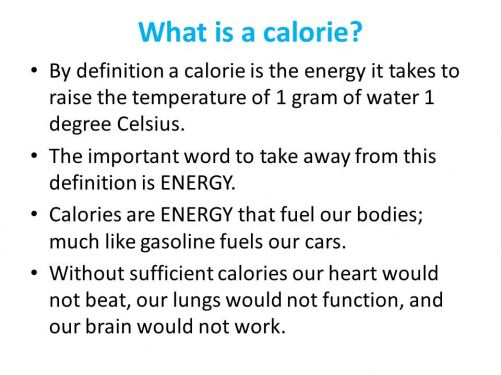
Image Source: Plattershare
  • How much calories are needed by our bodies depends on our age, sex, size, and activity level.
  • As per the United States government, men need an average of 2700 kcal/day while women need 2200 kcal/day.
  • In the US, people consume more than 11% of daily calories from fast food.
  • Empty calories term is used for those food sources which have insignificant nutritional value but high energy value, such as sugars, sodas, fast food, etc.
Table of Contents hide
12 Best Calorie Counter Apps in 2024
1. Fitbit
2. Lose It! – Calorie Counter
3. MyFitnessPal
4. Lifesum
5. Weight Watchers Reimagined
6. Nutritionix Track
7. Fooducate
8. Samsung Health
9. Calory
10.Calorie Counter (Easy Fit)
11. Calorie Counter (MyNetDiary, Food Diary Tracker)
12. HealthifyMe

12 Best Calorie Counter Apps in 2024

Through this blog, let us look at the most striking features of the best calorie counter apps for Android & iPhone in detail.

1. Fitbit
Fitbit - Best Calorie Counter Apps

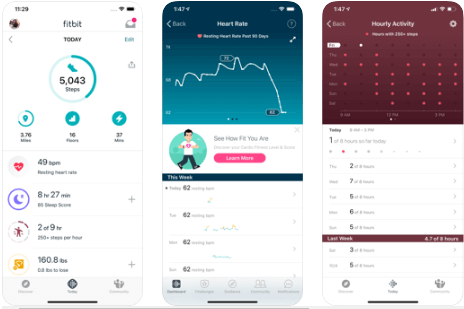
Here is a calorie counter app from Fitbit – the world’s leading brand for fitness tracking products. With this app, you can track your day-long activities and manage all your fitness goals with ease.

Record the number of steps you have walked with MobileTrack. As the Fitbit tracker syncs wirelessly with this tool, it lets you monitor the number of calories burned, your sleep duration, and how much time you have been active throughout the day.

Record workouts, monitor your heart rate with PurePulse, maintain a log of calorie intake, and get an idea of how much calories you are consuming from pre-processed food items with the help of the barcode scanner calorie estimator.

Not only count your calories with this app but also keep a check on your hydration level during workouts. Additional features include sleeping duration monitoring and the MobileRun feature. What makes Fitbit a one-stop solution for fitness enthusiasts is that it can be used to create fitness goals and manage them smoothly.

Android
ios

Read More: 13 Best Meal Planning Apps For Android & iOS


2. Lose It! – Calorie Counter  
Lose It - Best Calorie Counter Apps

Do you want to achieve the right weight and body shape? With Lose It, this is not a very far-fetched goal as it is the best calorie counter app for Android & iPhone users. 

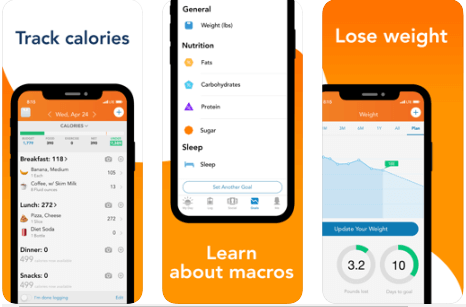
Highly acclaimed by The Wall Street Journal, CNN, Good Morning America and many more, this app lets you track macronutrients, carb, sugar, fat, protein, and the overall calorie intake effortlessly. This app lets you plan your meals, sync your fitness tracker with it and accomplish unlimited possibilities.

Embark on the journey of attaining fitness and staying away from the extra calories with Lose It. This app is highly recommended for those who are on keto, vegan, fasting, or any other kind of diet plan.

This diet tracking app has a Barcode Scanner to estimate the amount of calorie intake. You can also take a snap of your food with the app and let it count the calories you are about to gobble. 

android
ios

3. MyFitnessPal

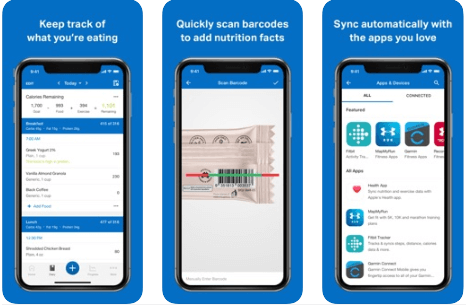
MyFitnessPal - Best Calorie Counter Apps

An ultimate solution for fitness enthusiasts is here to help you lose weight, get into the right shape and begin a new diet plan. Take a step towards healthier living today by setting the right goal for yourself with this amazing calorie tracker app.

Did you know that you can log menu items from your favorite restaurants now with this app? This app is not limited to just measuring the calories, it can also allow you to log your exercise routines.

MyFitnessPal keeps a track of macro and micronutrient consumption, apart from helping you customize your dairy products intake and also regulating your daily water consumption.

android
ios

4. Lifesum

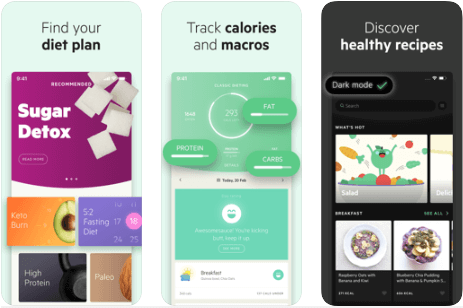
Lifesum - Best Calorie Counter and Diet Planner  Apps

Looking for the best app to count calories? With Lifesum’s top features, you definitely can go on a keto, paleo, fasting or sugar-free diet readily. Count and calculate your calories with ease and get a customized diet plan to lose weight and tone down your body perfectly with this diet planner app. 

Using Lifesum is very beneficial as it integrates with Google Fit and S Health to allow users to export nutrition and exercise data from Lifesum to these platforms. Additionally, you can also sync Lifesum with other fitness apps like Nokia Health, FitBit, Moves, etc.

android
ios

5. Weight Watchers Reimagined

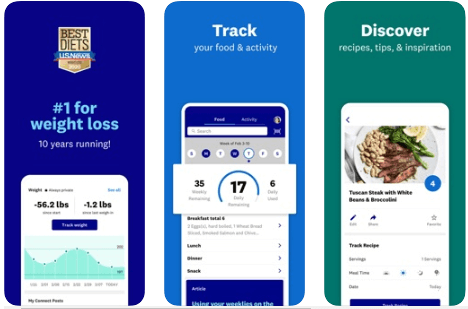
Weight Watchers Reimagined - Best Calorie counter Apps

This is certainly the best calorie counter app. Do you know why? Because it has ranked as the no.1 doctor-recommended weight-loss programme in the U.S. 

Like Night Watchers of GOT kept the White Walkers away, similarly Weight Watchers Reimagined will keep the extra calories away. Download the app to access this groundbreaking programme and get a personal evaluation done today. This app will come up with an instant weight loss plan curated just for you.

What’s more interesting is that you will have unlimited access to 24/7 Community & Live coaching. To motivate users further, this app offers rewards points for tracking your food, activity, or weight regularly.

android
ios

6. Nutritionix Track

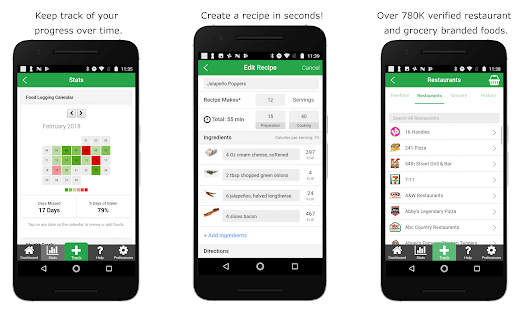
Nutritionix Track - Best Calorie counter Apps

Wouldn’t it be great to have a dietician around to get the most out of your fitness regime? Nutritionix Track makes this possible, as this calorie counter and diet tracking app is designed by a team of registered dieticians.

Unparalleled in its offerings, this app lets you track your food intake, nutrients & calorie intake, exercises & overall activity, as well as water intake. This app facilitates Fitbit sync and downloading data in the form of a spreadsheet with the aid of the Export feature.

The Nutitionix database has 800K+ unique food information. Additionally, you can avail 760+ US restaurant chain menus with this app.

android
ios

Read More: Top 10 Apps To Stay Healthy and Fit


7. Fooducate
Fooducate - Best Calorie counter Apps

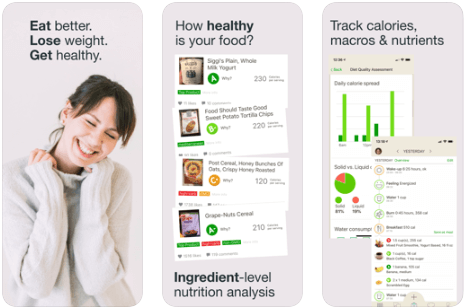
Stop worrying about your daily calorie intake with this calorie tracker app. Monitor your weight, physical activity, and count calories with Fooducate. Besides, you can also integrate this tool with Apple’s Health App.

With a huge food database, this app can quickly provide the nutritional and calorie information of any packaged food item by scanning the barcode. 

It also educates you about the effects of consuming added sugars, trans fats, aspartame (an artificial sweetener), GMO (genetically modified organisms), etc. Thus, it is very suitable for being used by novices.

ios

8. Samsung Health

Samsung Health - Best Calorie counter Apps

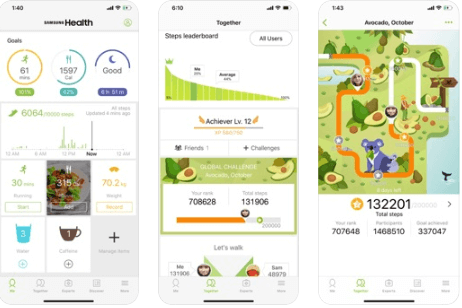
Monitor and control your daily intake of food, water, snacks, caffeine apart from managing your weight with this calorie monitoring app. You can also keep a track of your sleep and stress with this wonderful application from Samsung.

Take note of your daily activities and get in touch with experts effortlessly with this fitness app. Keep yourself fit and healthy without worrying about exposing your private data to prying eyes as Samsung Health monitors your private data securely.

android
ios

9. Calory

Calory - Best Calorie Counter Apps

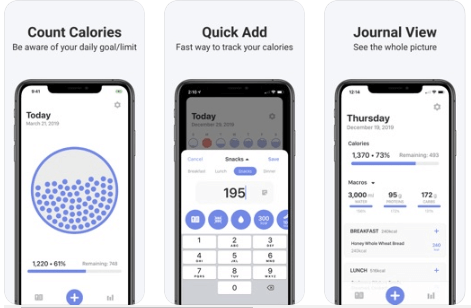
A fun, simple and easy way to count your calories with this calorie counter app for iOS, it suggests a daily calorie intake limit for you based on your weight, height and activity. 

Integrate it with the Apple Watch app and Apple Health easily. Start using the app instantaneously without any registration or sign up needs. Never worry about your private information as Calory stores everything in iCloud.

ios

10.Calorie Counter (Easy Fit)

Calorie Counter (Easy Fit)- Best Calorie Counter Apps

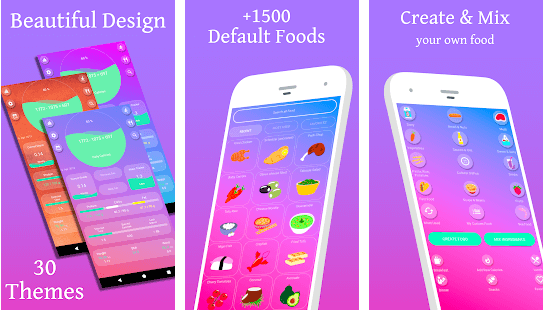
With Easy Fit by your side, you can easily lose your weight and improve your stamina as well as your fitness meters. This free diet tracker app has 2 widgets to incorporate your week’s exercises and your daily calorie intake.

The advantages include a “no list” method. You have got to add the food you want to check. The calorie calculations would be done during the process. You can thus mix and match the foods in a way to create a new meal plan for yourself. 

android

11. Calorie Counter (MyNetDiary, Food Diary Tracker)
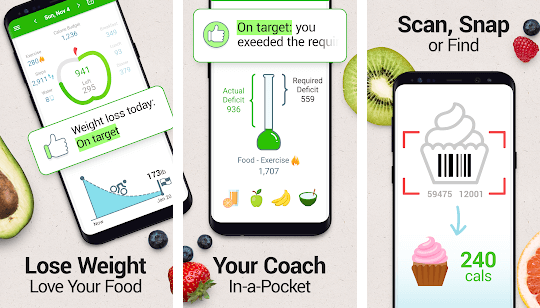
Calorie Counter (MyNetDiary, Food Diary Tracker) - Best Calorie Counter Apps

Recognized by the New York Times, as the “simplest, quickest and nicest looking app,” this best calorie counter app for Android can forecast weight, support any form of diet as it has a huge food database, and help you log food easily.

Thus, you can always make the app adapt to the very individualistic and unique needs of your body. This app also includes several blogs from registered dieticians.

android

12. HealthifyMe

HealthifyMe - Best Calorie Counter Apps

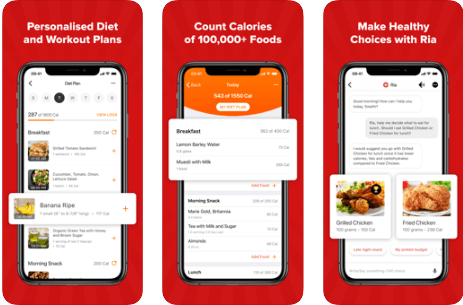
Another top choice among people is this app to count calories. You have to feed the app with your healthy diet sheets and BMI. It would then calculate your apt calorie intakes throughout the day and suggest ways to improve your diet plans and your workout sessions. You can find health advice and recipes on the site as well.

android
ios

Summing Up

Thus, with calorie-tracking apps, you can not only log your food easily but also get a complete insight into the food quality you are consuming and your binge eating habits. These programs don’t just count calories for you but also keep a track of your overall health. Some tools go a step forward to motivate users by offering rewards for doing the right things.

As the famous proverb goes, “A stitch in time saves nine,” so, stop procrastinating, install a diet tracking app on your Android or iOS smartphone today and embrace healthy living.

Image Source: App Store, Play Store

Author

Snigdha

Snigdha is a technical content writer with expertise in the field of science & technology. Though she has a very diverse academic and professional profile yet she finds writing to be a creative form that she was unable to explore so far. When not writing, she can be found indulging in other forms of creativity like painting or travelling.

View all posts

Related Posts
How to Create a Telegram Channel

How to Create a Telegram Channel in 2024

April 20, 2024
0

Here is a detailed tutorial on creating a Telegram channel to widen your individual or business reach.

Telegram took the world by storm soon after its release because of its unique features. It boasts many fascinating features, making it a fiercely competitive messaging platform. Telegram channels are one of these praiseworthy offerings. These channels help users reach a larger audience to share valuable information, and entertainment, or grow the business by advertising the products/services to a wider set of potential customers in a single go. Hence, it is a good decision if you want to create a Telegram channel.

However, if you need assistance creating a channel on Telegram, you are in the right spot. This article will guide you through the complete process of channel creation. Before beginning with the guide, let us shed more light on Telegram channels to help you understand better.

What Is a Channel on Telegram

Let us understand Telegram channels with an example. Suppose you wish to inform 2000 people about your upcoming podcast. In such a situation, sending individual messages to all these people is inconvenient and a waste of time and resources. Hence, you would prefer to reach everyone in a single shot. It is what a Telegram channel lets you do.

You can make a Telegram channel to broadcast your message to a larger audience. However, make sure to distinguish channels and groups on Telegram. These two are strikingly different.

Unlike groups, Telegram channels do not support member interaction (only admins can send messages), followers do not get notified when anyone joins the channel, posts show how many users viewed them, and have no subscriber limitations. Hence, channels are a wonderful tool to help individuals or businesses convey their message to people at large.

Now that you are more familiar with channels, let us walk you through the lucid guide to creating a Telegram channel on desktop, Android, and iPhone/iPad.

Also Read: How to Use Telegram Without a Phone Number


How to Create a Telegram Channel on a PC

Telegram channel creation on a desktop is as simple as ABC. All you have to do is follow these steps to make a channel on Telegram.

  • The first step is quite obvious, i.e., opening Telegram on the desktop.Opening Telegram on the desktop
  • Secondly, enter the Telegram menu. You can do so by clicking on the three bars (sandwich icon) at the top-left corner of the Telegram window.Telegram menu
  • Next, choose New channel from the on-screen options.choose New channel from Telegram
  • You can now name the channel and input a brief channel description (ensure the description remains within the character limit).
  • Next, click Create to proceed further.Create a new channel on Telegram
  • You can now choose from a Public or Private channel. If you choose to create a Public channel, input the channel URL.
  • After selecting the channel type, click Save. Telegram channel public and save
  • Next, invite members to the channel. Click “Skip” if you do not want to invite members yet. The channel is now created.

Also Read: How To Delete/Deactivate Your Telegram Account Permanently


How to Create a Channel on Telegram on Android

Here are the quick and easy steps you can follow to make a Telegram channel on Android.

  • To begin the process of channel creation, open the Telegram application.open the Telegram application
  • After opening the Telegram app, choose the Pencil (edit) icon from the bottom-right corner of the application screen.select the edit option of telegram app
  • You can now tap on the option to create a New Channel. create new channel
  • Next, name your channel, describe it within the character limit, and tap on the tick icon.fill all the details to create a new telegram channel
  • You can now select and add members to your channel.click on add subscriber
  • After adding the members, tap the arrow at the bottom-right corner of the app screen. The channel is now created and you can personalize it.

Also Read: Best Free Forex Signals Telegram


How to Create a Telegram Channel on iPhone/iPad

Below is the simple process of making a Telegram channel if you have an iPhone or iPad.

  • Firstly, launch the Telegram app on your iPhone/iPad by tapping the application icon.telegram app on iphone or ipad
  • Next, tap the Pencil and Paper (edit) icon in the app screen’s upper-right corner.click on edit option of telegram app on iphone
  • Choose New Channel from the options available on your screen.create new channel in telegram app
  • Tap the Create Channel button to proceed to the next screen.click on create channel on telegram in i[hone
  • Input your channel’s name and an optional description.
  • Tap Next to continue.fill all the details to create a new telegram channel in iphone
  • Choose your channel type. If you select a public channel, input a channel URL to help people find your channel.
  • Tap Next to continue further.public or private on telegram in iphone
  • You can now add members to your channel by tapping on their names.
  • After adding the desired members, tap Next to complete the channel creation.

After creating your Telegram channel, the next step is to personalize it. You can customize the channel by adding bots for a better experience. As a bonus for our readers, here is an overview of how to add a Telegram bot to your channel.

Also Read: Best Free Instagram Analytics Tools to Use


Adding Bots to Telegram Channels

If you wish to add a bot to your Telegram channel, you can follow these simple steps.

  • To get started with the process of bot addition, open Telegram. 
  • Secondly, navigate to the settings of your channel. You can do so by selecting Administrators from the upper-right corner of the app window (on desktop) or by following the path Manage Channel>Administrators (on mobile).
  • Next, choose the Add Admin option.
  • You can now search for the desired bot by entering its name or username in the search box.
  • Next, select the bot you want to add to your channel.
  • Allow the necessary permissions and click Done to add the bot to the channel admins.

Also Read: Best Apps to Mass Unfollow on Instagram


Wrapping Up 

The above sections explained everything about how to create a Telegram channel and add a bot to the channel. We hope you found this tutorial useful. However, if you have any questions, doubts, or tips to make this guide better, please feel free to let us know through the comments section.

PDF Creators for Mac

6 Top PDF Creators for Mac

October 28, 2022
0

Through this article, let us walk you through the best free PDF creators for Mac and the top paid software to create and edit PDF documents.

PDF or Portable Document Format is among the most secure file formats, as they are not easily editable. Moreover, easy shareability also contributes to making PDF the most desirable choice for documents like manuals and brochures. However, creating PDFs becomes quite a tough job, as, unlike Windows, there are not many PDF creators for Mac on the App Store.

However, now that you have found this article, PDF creation won’t be a tough task anymore. This article acquaints you with top-rated paid and free PDF creators for Mac to help you effortlessly create PDF documents.

Before looking at the PDF creators for MacBook, let us look at the qualities of the best software to create PDFs. If you know the features a software should contain, choosing the perfect one for your requirements becomes easier. Hence, we share them in the following section.

Qualities of the Best PDF Creator for Mac

The best paid or free Mac PDF creator should possess all or most of the following qualities or features.

  • The PDF creator for MacBook should support multiple file formats, such as images
  • It should be really quick and easy to convert a document into a PDF
  • Advanced options like E-sign and OCR should be available
  • A PDF creator should double up as the best paid/free PDF creators for Mac with a variety of editing options
  • PDF sharing should be simple

Above, we walked you through some of the top qualities of the best PDF creators for Mac. Now, let us go through a list containing six top PDF creation programs possessing a majority of these and many other features.

List of the Best MacBook PDF Creators (Free and Paid)

The following is a well-researched list of the top paid and the best free PDF creators for Mac.

1. PDFelement Pro

PDFelement Pro for mac

To begin with, let us introduce you to PDFelement Pro. It is a professional program that is not only a PDF creator but also one of the best free PDF creators for Mac.

With the help of PDFelement Pro, you may perform multiple actions, like easy PDF creation from text files, HTML, webpages, etc., Moreover, this software boasts the following fascinating features that make it the best PDF creator for Mac.

Key features of PDFelement Pro

  • Preservation of the original layout when converting Word to PDF
  • A plethora of markup tools to mark up and annotate PDF documents
  • Easy filling and changing of data in PDF forms
  • Tools to edit images, text, links, and various other PDF components
  • PDF protection with watermark and password

Click here for more information

Also Read: How to Convert PDF to Word on Mac


2. PDF Expert

PDF-Expert

Next, we have PDF Expert on this list of the best free Mac PDF creators. This software allows you to effortlessly sign, edit, annotate, and organize PDF documents.

Moreover, it encompasses many useful features, such as an erase or blackout tool to redact text and the ones shared below.

Key features of PDF Expert

  • In-built tools to create PDF text, links, signatures, images, pages, and files
  • Easy conversion of PDF to other popular formats, like PowerPoint, Word, JPG, and Excel
  • Lets you fill even the most complex forms effortlessly
  • You can rearrange, rotate, delete, extract, or merge PDF documents with page management tools
  • OCR to recognize the text present in scanned documents
  • AI-powered “Enhance” option to correct distortions, eliminate shadows, and enhance contrast
  • Double-page scan splitting into separate pages and removal of unwanted margins
  • Various modes to make PDF reading a delightful experience
  • Availability of a plethora of annotation tools

Click here for more information


3. Coolmuster

Coolmuster

Let us now talk about Coolmuster. It is also among the best PDF creators for Mac for a plethora of reasons, such as the creation of PDFs from more than 7 file formats.

In addition to it, features like batch and partial conversion modes also justify its placement on the list of the best paid and free Mac PDF creators. Talking about the features, below is what else we found worth mentioning about this software.

Key features of Coolmuster

  • Various customization options, like PDF merging, page size adjustment, and deletion of any unnecessary file before PDF creation
  • Availability of security options like password
  • An easy-to-use interface suitable for both beginners and advanced users
  • Option to save all image files as JPEG/JPG, GIF, PNG, and BMP into a PDF photo book

Click here for more information

Also Read: Best Free PDF Editors For Mac


4. Bluebeam Revu for Mac

Bluebeam Revu for Mac

The next software we would like to talk about is Bluebeam Revu for Mac. It is also among one of the best PDF creators of Mac for reasons like screen splitting over 16 times to view more than one PDF file.

Moreover, the following features are also a reason for listing Bluebeam Revu among the best PDF creator software for Mac.

Key features of Bluebeam Revu for Mac

  • A user-friendly and intuitive interface
  • Many editing, collaboration, and markup options
  • Customizable measurement tools and high-quality PDF organization

Click here for more information


5. iPubsoft PDF Creator for Mac

iPubsoft PDF Creator for Mac

Next on our list is iPubsoft PDF Creator for Mac. It is yet another free Mac PDF creator with features like the creation of high-quality PDFs from images, text, Word, and MOBI/PRC.

Additionally, it boasts other helpful features like customizing and combining files into one PDF document. Moreover, below are more of the key features of this software.

Key features of iPubsoft PDF Creator for Mac

  • Retains the original document’s look and feel
  • Easy conversion to PDF
  • Supports multiple text and image formats, such as png, jpg, gif, bmp, xpm, ani, and more
  • You can convert multiple files into PDF at once

Click here for more information


6. Soda PDF for Mac

Soda PDF for Mac

The list of the best PDF creators for Mac can never be complete without Soda PDF. This software allows you to not only create PDFs but also read them through the page-flipping technology.

Along with it, the following are the unique features of Soda PDF for Mac, making it the best PDF creator and creation tool.

Key features of Soda PDF for Mac

  • PDF security with 256-bit encryption passwords
  • Easy PDF creation from any printable file within a few seconds
  • Conversion of multiple PDF files at once
  • Options to add/remove text, modify text’s font/color/size.
  • You can crop, add, delete, clip, or crop photos, and apply many other editing options
  • PDF annotation and reviewing
  • Easy form creation
  • Availability of E-signature and OCR features

Click here for more information

Also Read: Best PDF Search Engine Sites to Get Free PDF eBooks


Concluding the Best PDF Creators for Mac

This article discussed the top paid and the best free PDF creators for Mac you may use to create and edit PDFs. You may walk through the features of each software shared above to choose the perfect one for your needs.

If you find any top-rated Mac PDF creator missing in this article, you may use the comments section to share it. Moreover, the comments section is open to all questions or suggestions you may have about this write-up.

1 Comment
    Shawnda Colindres says: Reply
    March 28th 2020, 10:02 pm

    The 16 Best Calorie Counter Apps To Lose Weight & Boost Immunity article is one of the best I have ever read! I found a way to lose weight with yoga, You are doing a great job Congrats!

Leave a Reply Cancel reply

Your email address will not be published. Required fields are marked *

Sidebar Image bit G ad1

Latest Posts

  • Anytime Astro: Best Website For Online Astrology Consultation
    Anytime Astro: Best Website For Online Astrology Consultation
    by Somya Shrimal / February 13, 2026
  • Best-McAfee-alternative-software-to-use-for-Virus-Protection
    Best McAfee Alternative Software to use for Virus Protection
    by adminuser / February 11, 2026
  • What-is-Flip-Flop-in-Circuite-and-it's-Types
    What is Flip Flop in Circuit and its Types
    by Meet / February 6, 2026
  • Best-Data-Labeling-Software-to-use-in-2026
    Best Data Labeling Software to Use in 2026
    by Meet / February 2, 2026
  • Best-Google-Slides-tools--to-add-as-extension-in-2026
    Best Google Slides Tools to Add as Extension in 2026
    by Meet / January 30, 2026

Categories

  • Cyber Security
  • Driver Updater
  • Entertainment
  • Fitness
  • Games
  • How To
  • laptop
  • OS
  • Reviews
  • Tech News
  • Tips & Tricks
  • Top 10
Sidebar Image bit G ad1
Best Data Recovery Software for Mac 9 Best Data Recovery Software for Mac in 2024 (Free and Paid)by Devesh / January 2, 2024
16 Best Mp3 Splitter tools to Split and Join Mp3 Files in 2024by Prachi Dani / January 2, 2024Best Mp3 Splitter tools to Split and Join Mp3 Files
TechPout Footer Logo

We at TechPout promise to put forth stories that help people to learn and simplify their digital life. Our purpose is to share the true essence of technology with our tech-loving community.

Useful Links

  • About Us
  • Contact us
  • Privacy Policy

Popular Posts

  • Best PC Optimizer Software
  • Best Mac Cleaner Apps
  • Best Driver Updater
  • Duplicate Photo Finder and Cleaner Software
  • Best Free Movie Download Sites
  • Best IPTV Players

Follow us

Copyright © 2026 www.techpout.com. All rights reserved
DMCA.com Protection Status