Whenever you visit a profile, LinkedIn pops up a notification or message. It is good to make connections, but sometimes it is annoying. While searching for career opportunities, competing for profiles, or just browsing profiles, receiving notifications about visits is irritating. To solve this problem, LinkedIn introduced a private mode. It allows you to view LinkedIn anonymously without sending notifications to others. In this blog, we will explore how to view LinkedIn profile without signing in. So, let’s dive in.
LinkedIn Anonymous Modes
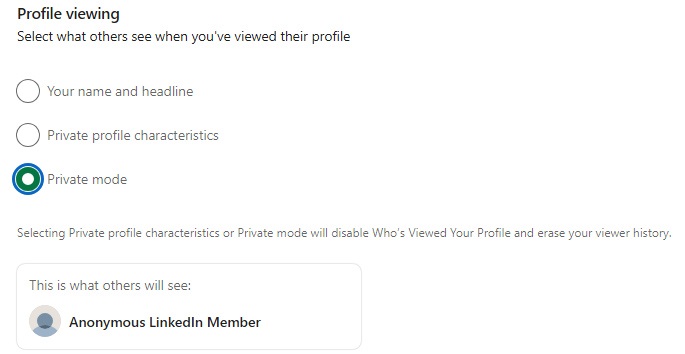
This private mode of LinkedIn allows you to view profiles anonymously. LinkedIn sends a notification that someone has visited the profile, but does not identify the viewer. Even in this, there are 3 options for being anonymous:
- Private mode—In this mode, you won’t be identified by LinkedIn. Your name, profile, etc., are 100% anonymous. It informs you that an “Anonymous LinkedIn Member” has viewed your profile.
- Private profile characteristics—In this option, LinkedIn only shows your job title, company, or school, but does not show your name and headlines.
- Your name and headline—Allowing this option lets LinkedIn view your name, headline, and connection degree.
Turning On LinkedIn Private Mode
Turning this on, you can visit and view LinkedIn anonymously without revealing your name, job title, or any other information. The other person gets a message as “LinkedIn Member—This member viewed your profile in private mode.”
Here are the steps to enable LinkedIn Private Mode on mobile (Android or iOS), which will help you view linkedin profile without signing in:
- Open the LinkedIn app.
- Tap on your Profile icon.
- Click on Settings.
- Select Visibility.
- Go to Profile Viewing Options.
- There will be three options; select Private Mode among them.
Turning On LinkedIn Private Profile Characteristics
Here are the steps to view LinkedIn anonymously through the “Profile Characteristics” option on mobile:
- Open the LinkedIn app.
- Tap on your Profile icon.
- Click on Settings.
- Select Visibility.
- Go to Profile Viewing Options.
- Select Private profile characteristics from the options.
Turning On Your name and headline option on LinkedIn
Here are the steps to view LinkedIn anonymously by enabling the “Your name and headline” option on mobile:
- Open the LinkedIn app.
- Tap on your Profile icon.
- Click on Settings.
- Select Visibility.
- Go to Profile Viewing Options.
- Select your name and headline from the options.
Also know: Best Online Recruitment Software to Hire Resources
Ways to View LinkedIn Profiles Anonymously
Trick 1- Use Google search or other search engines as operators.
Searching profiles on Google allows you to view linkedin profile without signing in.
- Type “site: linkedin.com/in”
- Add “name,” “company/school,” and “location/city” in the end for more precision.
- Use a new tab to open results to avoid redirects.
- Instead of just double-clicking on the link, choose “open link in new tab” or copy the URL and paste it in another tab or in incognito.
Trick 2—Web translation proxies
This trick helps you to view LinkedIn profiles without signing in, and you can also view LinkedIn without account.
- These proxies work as a middleman between the viewer and LinkedIn.
- Copy the URL of the LinkedIn profile.
- Paste it into Google Translate
- Pick up any language.
- Click on the link translated through a proxy.
Trick 3- Find the public vanity URL from other sources of the person you want to see.
Vanity URLs are sometimes difficult to find, but when you get it, you can view LinkedIn profiles without signing in or logging in.
- Go to the personal sites, the company bio, or the about us pages of the company.
- Look for “connect with ‘name’ on LinkedIn.”
- Once you find the vanity URL “linkedin.com/in/’name”, use the above 2 tricks.
Trick 4- Use an image to search the profile
Use image search to find LinkedIn profile and view LinkedIn without logging in.
- If it is known, drop their picture into Google images.
- Adding keywords like “name,” “LinkedIn,” and ‘place/location” helps in filtering out the unwanted profiles.
Trick 5- Use mobile or incognito for a one-time view
Incognito mode is always anonymous. If you want to view LinkedIn without account.
- Open the browser and turn on incognito.
- Paste the URL of the profile.
- If it shows blocked, use a different device.
- If it is still not opening, switch airplane mode on and off to refresh the IP.
LinkedIn Private Mode Benefits
Helps in improving your profile
Watching others’ profiles without using private mode sends them notifications. Repeated visits to their profile feel awkward at times. Improve your profile by seeing others in private mode so that they don’t get any notifications, and you gather information anonymously.
Watch the competitors
Tracking your competitors without them knowing. Find your potential competitors and partners via their profiles. Analyzing their network, skills they are up to, new leads, connections, and further steps can be analyzed easily. Keep yourself updated with industry trends and work accordingly.
Research opportunities secretly
Search for the opportunity that is best for you by visiting pages or profiles of the desired company, industry, people, or school without being noticed. Notice what is essential and required for you, and make your first impression the best.
Cons of Using Private Mode
Even though it is a good option to be private so that nobody can notice you. But it has its own drawbacks. Here are some listed:
- You are not able to see the “Who Viewed Your Profile” list. When private mode is enabled, you might miss connections with potential people.
- When people get notified of your name, there is a high chance that they will revert back or view your profile, which increases the chances of making connections.
It is like a Trade-Off. Enabling private mode means no one can trace you, but you will also be blind to who is watching you.
Also know: Linkedin Influencer Marketing: Complete Guide with Strategies
Frequently Asked Questions
Q1. Is LinkedIn Premium required to view profiles anonymously?
To view anonymously, there is no need for a premium account. Private mode is free for all. But if you enable private mode, you are also unable to view who viewed your profile.
Q2. Is there any limit on viewing profiles in private mode?
There is no limit to viewing profiles in private mode. You can view anytime, but at a certain point, LinkedIn limits profile viewing to stop spamming.
Q3. Can LinkedIn premium members see who viewed their profile?
Premium users cannot see who viewed their profile if they are using private mode. You still remain anonymous.
To view LinkedIn anonymously can be a valuable tool for job seekers, recruiters, or anyone interested in networking without drawing attention to themselves. By utilizing LinkedIn’s private modes or employing creative strategies, you can view LinkedIn without logging in and without revealing your identity. You can stay anonymous on LinkedIn by using search engines, private mode, or other tricks. This makes your online experience better and keeps your privacy safe.