BitLocker is a built-in security feature in Windows that helps protect your data by encrypting your hard drive. This means your files stay safe if your laptop or computer is lost or stolen. While this sounds useful, there are times when users may want to disable BitLocker or turn off BitLocker on their system.
Some individuals notice slower system performance, while others want to upgrade hardware, reinstall Windows, or move their drive to another computer. In some cases, users forget the BitLocker recovery key and need to remove the protection to access their data. Because of these reasons, many users look for safe ways to disable BitLocker without harming their files.
This guide will help you understand how to pause, disable, or permanently remove BitLocker using step-by-step methods. If done correctly, it is safe to turn off BitLocker and your data will remain intact.
What Is BitLocker and How Does It Work?
BitLocker is a security feature built into Windows that helps keep your personal data safe. It works by encrypting the drive where your files, apps, and Windows system are stored. Encryption means your data is locked and cannot be read without proper permission. Even if someone removes your hard drive and connects it to another computer, the files will stay protected.
BitLocker is mainly available in Windows Pro, Enterprise, and Education editions. It is not included by default in the Home version. The purpose of BitLocker is to protect sensitive data from theft, loss, or unauthorized access.
To unlock an encrypted drive, BitLocker uses a security check. This can be a TPM (Trusted Platform Module) chip built into your device or a password and recovery key. When everything works properly, this process runs quietly in the background. However, some users later decide to disable BitLocker because they no longer need this level of protection or want more control over their system.
Things to Know Before Turning Off BitLocker
Before you turn off BitLocker, it is important to prepare your system to avoid any problems. First, make sure you back up all important files to an external drive or cloud storage. While disabling encryption is usually safe, having a backup adds extra protection.
You should also keep your BitLocker recovery key saved in a secure place. This key can be useful if something goes wrong during the process. Keep in mind that when you disable BitLocker, Windows needs time to decrypt the device. Depending on the size of your drive, this can take minutes or even hours.
If you are using a laptop, keep it plugged into a power source. Turning off BitLocker during low battery can interrupt the process and cause issues.
How to Turn Off BitLocker Temporarily (Pause Protection)
Sometimes you do not need to completely disable BitLocker. If you are updating the BIOS, changing hardware, or fixing system settings, you can temporarily turn off BitLocker by pausing its protection. This option is called Suspend Protection, and it is quick and safe to use.
When you suspend BitLocker, your data stays encrypted, but Windows stops checking for security changes during startup. This makes system updates smoother without removing encryption. Follow these steps to pause BitLocker protection:
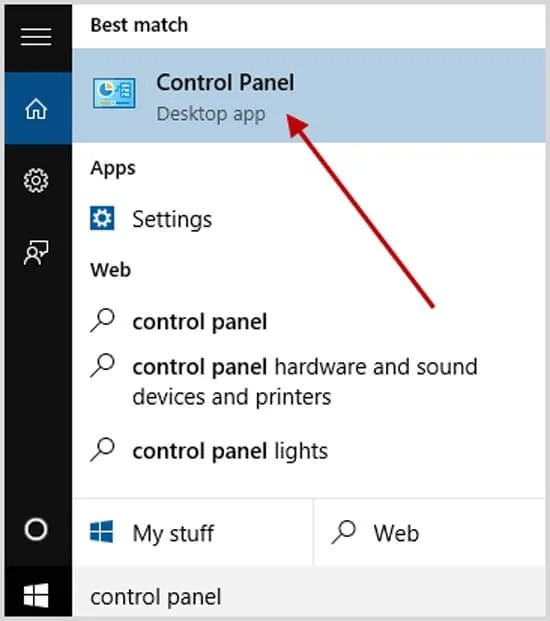
- Click the Start menu and open Control Panel.
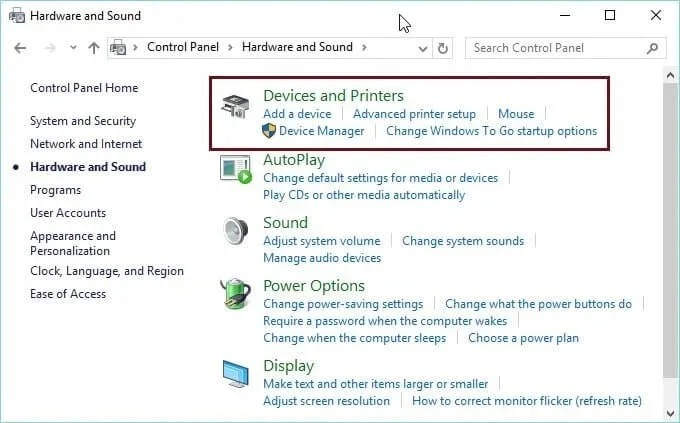
- Select System and Security.
- Click BitLocker Drive Encryption.
- Find the drive where BitLocker is enabled.
- Click Suspend protection next to the drive.
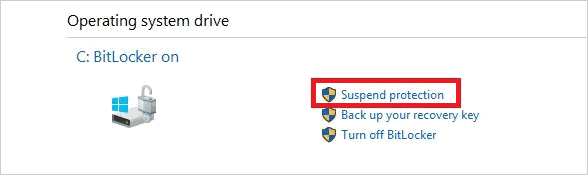
- Confirm the action when asked.
Once suspended, BitLocker will remain paused until you restart the computer or turn protection back on manually. This method does not remove encryption, and your files remain safe. If you only need a short break from encryption, this is the best way to turn off BitLocker without fully removing it.
Also know: How to Remove Windows Temp CAB Files
How to Disable BitLocker Completely
If you no longer want encryption on your drive, you can disable BitLocker completely. When you do this, Windows will decrypt the drive and remove BitLocker protection. Your files will stay the same, but they will no longer be encrypted. This option is useful if you plan to reinstall Windows, upgrade hardware, or simply do not need encryption anymore.
When you turn off BitLocker, Windows starts a decryption process. This means it unlocks all the data on the drive. The time needed depends on your drive size and system speed. It can take from a few minutes to several hours, but you can still use your computer during this time. Steps to Disable BitLocker Using Control Panel:
- Open the Start menu and go to Control Panel.
- Click System and Security.
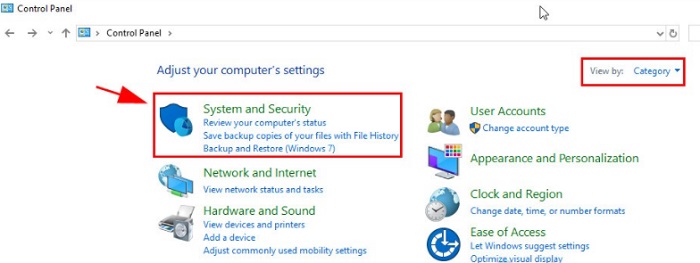
- Select BitLocker Drive Encryption.
- Find the drive where BitLocker is turned on.
- Click Turn off BitLocker.
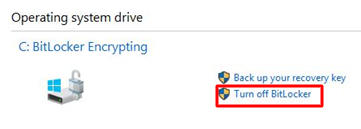
- Confirm your choice to start decryption.
Once started, Windows will show the decryption progress. You can check the status anytime by returning to the BitLocker settings page. When the process finishes, BitLocker will be fully disabled on that drive.
How to Remove BitLocker Permanently
If you are sure that you never want BitLocker on your system again, there are advanced ways to remove BitLocker permanently. These methods are best for experienced users or system administrators. If you are not comfortable with advanced settings, it is better to use the normal option to disable BitLocker instead.
Method 1 – Disable BitLocker via Command Prompt
The Command Prompt is a powerful way to manage encryption from the command line. This method is useful if BitLocker settings are inaccessible or if you are working across multiple machines. Follow these steps:
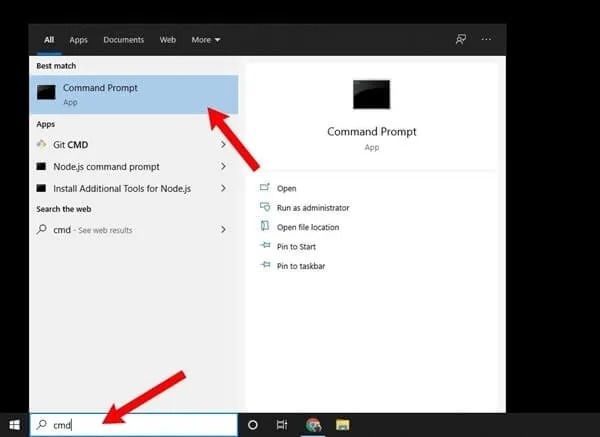
- Open Command Prompt as Administrator
- Type the following command (replace C: with the correct drive letter)
- manage-bde -off C:
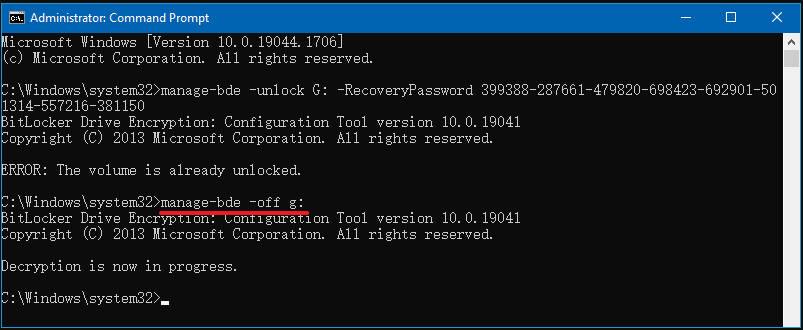
- Press Enter.
- Wait for the decryption to finish.
This will turn off BitLocker and remove encryption from the selected drive. You can continue using your computer while the process runs in the background.
Method 2 – Use PowerShell to Disable BitLocker
PowerShell is ideal for automated scripts or remote management tasks. It gives more flexibility, especially for enterprise environments. Follow these steps:
- Open PowerShell as Administrator.
- Run the command to disable encryption on the drive:
- Disable-BitLocker -MountPoint “C:”
- To check decryption progress, run:
- Get-BitLockerVolume
Wait until decryption completes to ensure BitLocker is fully removed.
These methods are for advanced users only. Using commands incorrectly can affect system security. Make sure you understand the process before you remove BitLocker permanently.
How to Check If BitLocker Is Fully Turned Off
After you disable BitLocker, it is important to confirm that the process is complete. To check this, open the Control Panel and go to System and Security > BitLocker Drive Encryption. Look at the status next to your drive. It should clearly say “BitLocker off.”
If the drive is still decrypting, you may see a progress indicator instead. Wait until the process finishes before shutting down your system. You can also check that there is no encryption or decryption running in the background. Once BitLocker shows as off, your drive is fully unlocked and ready to use.
Also know: How to Completely Remove Google Chrome from Windows PC
Common Problems and Fixes
Sometimes users face issues while trying to disable BitLocker. One common problem is BitLocker not turning off. If this happens, restart your computer and try again through the Control Panel. You can also pause and resume decryption to refresh the process.
Another issue is decryption getting stuck at a certain percentage. In most cases, this only means the system needs more time. Keep your device plugged in and avoid shutting it down. If it stays stuck for a long time, using Command Prompt can help remove BitLocker from drive more reliably.
If your recovery key is missing, check your Microsoft account, USB drive, or printed copy. Without this key, access may be limited. Some users also report their device keeps asking for a password after they turn off BitLocker. This usually stops after a full restart once decryption is complete.
These simple steps solve most BitLocker issues.
Is It Safe to Turn Off BitLocker?
Yes, it is generally safe to turn off BitLocker, but keep in mind that your data will no longer be encrypted. This means anyone with access to your computer can read your files. For most home users, turning off BitLocker is fine, especially if you have backups or do not store sensitive information.
However, for work computers or drives that contain private or important data, it is not recommended to disable BitLocker. In those cases, keeping encryption enabled provides an extra layer of security to protect against theft, loss, or unauthorized access.
Turning off or disabling BitLocker can make your system easier to use, especially during hardware upgrades, troubleshooting, or reinstalling Windows. Always remember to back up your important files before making any changes to avoid accidental data loss.
If you later decide you need extra security, you can always turn BitLocker back on to protect your drives. Following the steps in this guide ensures that the process is safe and straightforward. With careful preparation, managing BitLocker becomes simple, giving you full control over your data and system.