In this digital world, we are all uploading tons of data every day, and with so much information available online, it can be easy to forget the places we access. That’s where bookmarks come in handy!
Whether it’s a favorite website, an important document, a delightful recipe, an interesting article, or even a fun game, bookmarks are a great way to keep all your useful links organized and accessible in one spot. Lately, Microsoft Edge has really stepped up its game as a browser, making it easier than ever to save and manage your bookmarks.
In this blog post, we’ll dive into how to export bookmarks from Edge so you can keep all your favorite finds close at hand!
Why Do We Need to Export Edge Bookmarks?
Here are some reasons why you should export favorites from Edge or other browsers like Google Chrome, Firefox, or Safari, etc.
- Accessibility: It offers seamless access to bookmarks and favorite websites across various devices, thereby enhancing productivity for users.
- Efficient Sharing: It enables users to share bookmarks with others effortlessly, ensuring a smooth and glitch-free experience.
- Flexibility and Security: The system provides both flexibility and security in managing bookmarks, making it easy to organize and protect important data.
- Assurance: The option to export bookmarks guarantees that users will not lose their data, providing peace of mind in case of any data loss situations.
How to Export Bookmarks from Edge Bookmarks on the Desktop?
If you want to keep your favorite websites organized or share them with others, exporting bookmarks from Microsoft Edge on your desktop is a straightforward process, no matter if you have applied any Microsoft Edge Themes or not.
Here are some steps that will walk you through the simple steps on how to export bookmarks from Edge so that you have access to your important links whenever you need them. Let’s get started!
STEP 1- Open the edge on your device.
STEP 2- Open the menu, the three dots in the upper-right corner of the screen.
STEP 3- In the dropdown, click on “favorites.”
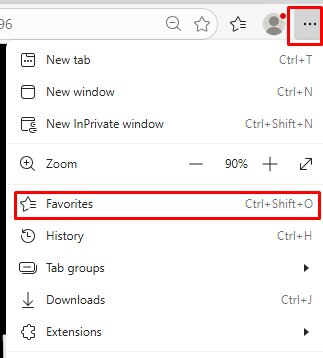
STEP 4- When Favorites opens, click the three dots in the upper-right corner in the dropdown.
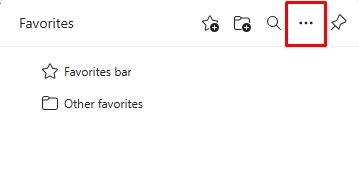
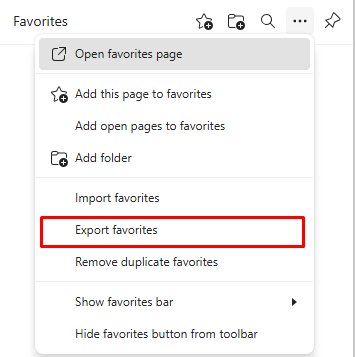
STEP 5- Click on “Export favorites” from Edge.
STEP 6- Enter the name under which you want to save your file, and choose the destination to save the file.

STEP 7- After entering the name and destination, click “Save” when done.
How to Export Bookmarks from Edge on Mobile?
Alas! Exporting favorites from Edge does not work on mobile, whether it is Android or iOS. But if you have signed in to Edge, your favorites sync automatically. Or you can export favorites from Edge on the desktop, where you are signed in to the same account.
How to Sync Bookmarks with other devices?
To sync your bookmarks across different devices, please follow the instructions provided below:
- Open Microsoft Edge.
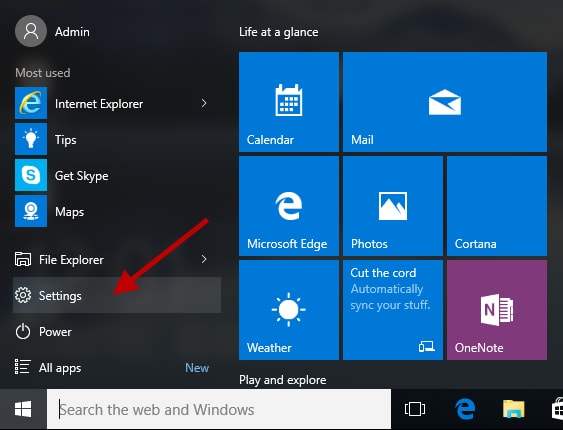
- Click on “Settings and more,” then “Settings.”
- Choose “Profiles” and click on “Sync.”
- Click “Done.”
Also know: Best Microsoft Edge Extensions
How to Import Bookmarks from Edge Bookmarks in Desktop?
STEP 1- Open the edge on your device.
STEP 2- Open the menu, the three dots in the upper-right corner of the screen.
STEP 3- In the dropdown, click on “favorites.”
STEP 4- When Favorites opens, click the three dots in the upper-right corner in the dropdown.
STEP 5- Click on “Import favorites.”
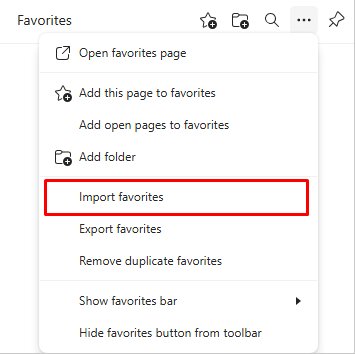
STEP 6- Choose from where you want to import your Bookmarks and click “Import.”
STEP 7- Click “OK” when it is done.
Backup of Microsoft Edge Bookmarks
In case you lose your bookmarks, it is better to create a backup of them. Here is how you can back up your bookmarks:
- Launch Microsoft Edge.
- Click on the “Speeding star” in the upper-right corner of the screen.

- Click on the “Gear” Button.

- Choose “Import or Export.”
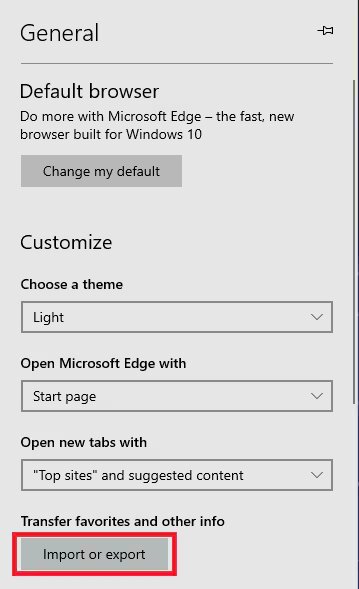
- Click “Export to file.”
- Save this file in an easy-to-find place, like “desktop,” or create a new folder named “Bookmarks” or whatever is suitable for you, and save it with an easy-to-remember file name.
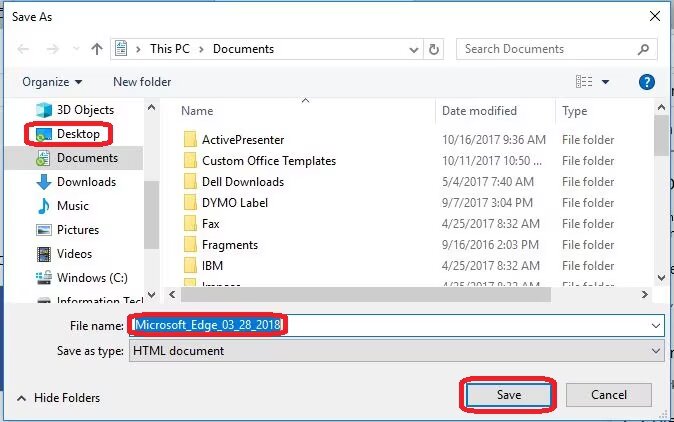
- Click on “Save” when done.
Best Bookmark Organizer For Edge
There are many third-party apps and websites that manage your bookmarks more efficiently. It helps in enhancing the browsing experience. Third-party apps allowed you to:
- Save, manage, or highlight your bookmarks using AI.
- Formats of the bookmarks are organized well. Whether it is an image, an article, a video, a podcast, etc.
- Seamless functionality through your bookmarks.
- Instant summarization through AI from YouTube or articles, etc.
- Usage is free and accessible to all users.
Also know: Microsoft Edge WebView2 Runtime & Download it for Windows 11
Frequently Asked Questions
Q1. How to export favorites from Edge?
Tap on the three dots on the upper-right corner > click on Favorites > click on the three dots from the dropdown > export bookmarks > save file.
Q2. Is it possible to back up your bookmarks from Microsoft Edge?
Yes, it is possible and considered to be safe to create a backup of your bookmarks. This helps you when you lose your data from the edge.
Q3. How to sync Edge bookmarks?
Follow these steps to sync edge bookmarks: “Settings and more,” then “Settings” > choose “Profiles” > click on “Sync” > click “Done.”
Q4. What to do with exported bookmarks?
You can upload it to cloud storage for backup or transfer it through USB or email to another device. Or you can also export it to other browsers like Google Chrome, Firefox, or Safari, etc.
When you understand the importance of how to export bookmarks from Edge, you can keep your favorite websites organized and easily accessible. Whether you’re looking to back them up, share them with friends, or sync them across devices, following the steps outlined above will help you do just that. Remember, a well-organized bookmark list can save you time and enhance your online experience.





![Fixed: “Two Finger Scroll Not Working” On Windows 10 [Solved]](https://wpcontent.techpout.com/techpout/wp-content/uploads/2020/11/10121659/Fix-Two-Finger-Scroll-Not-Working-On-Windows-10.jpg)