When your Windows computer starts acting strangely, showing errors, freezing, or even crashing with a blue screen, one of the first tools individuals use is System File Checker. The SFC scan checks important system files and fixes them if they are broken or missing.
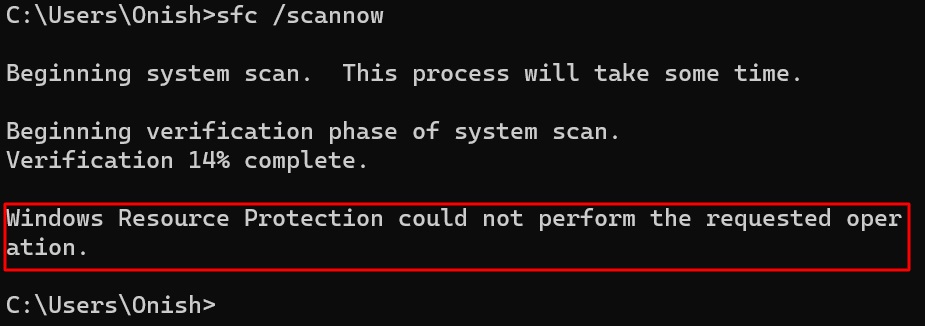
However, many users face a frustrating problem where SFC Scannow does not work and shows an error message instead. The most common message is Windows resource protection could not perform the requested operation.
If you are seeing this error, don’t worry. In this blog, we will explain what the error means, why it happens, and how you can fix it step by step using straightforward methods.
What Is Windows Resource Protection?
Windows Resource Protection is a built-in Windows feature designed to protect critical system files, folders, and registry keys. These files are essential for Windows to run properly. If they get deleted or damaged, Windows may stop working correctly.
To prevent this, Windows Resource Protection keeps backup copies of important files. When something goes wrong, Windows can restore these files automatically.
The System File Checker (SFC) tool depends on Windows Resource Protection to work. When you run sfc /scannow, it compares your system files with the backup versions. If differences are found, it replaces the damaged files.
When Windows Resource Protection fails, the scan fails too. This is why errors like Windows Resource Protection could not perform the scan appear.
Why Does This Error Occur?
The Windows resource protection could not perform the requested operation error usually appears when Windows is unable to access or repair important system files. One of the most common reasons is corrupted system files. When these files are damaged or missing, Windows Resource Protection cannot compare them with healthy backup copies, causing the scan to fail. Hard drive issues such as bad sectors or disk errors can also trigger this problem because Windows cannot read or write data correctly from the storage drive during the scan process.
Another frequent cause is disabled or malfunctioning Windows services. The System File Checker depends on certain background services to function properly. If these services are turned off, blocked, or not responding, Windows cannot complete the repair task. File system errors can also interrupt the scan, especially if the structure of the disk has been damaged due to improper shutdowns or software conflicts. Malware infections are another major factor, as malicious programs can modify or lock protected system files, preventing Windows Resource Protection from accessing them.
Sudden power loss, forced shutdowns, or system crashes can further damage system files and leave Windows in an unstable state. In such situations, running an SFC scan while Windows is already under heavy load or busy with background tasks may also cause the scan to fail. In some cases, users may see a slightly different message such as Windows Resource Protection could not start the repair service, which means the required service responsible for repairing system files is not running or has been disabled.
Now that we know the reasons behind this error, let us learn how to fix it.
How to Fix Windows Resource Protection Errors
Let’s go through the most effective solutions. Try them in order.
Solution 1 – Run SFC in Safe Mode
Safe Mode starts Windows with only basic drivers and services. This reduces conflicts and allows SFC to work properly. In many cases, running the scan in Safe Mode allows SFC to access and repair protected system files without interruption.
- To boot into Safe Mode, press Windows + R to open the Run dialog box.
- Type msconfig and press Enter.
- In the System Configuration window.
- Open the Boot tab in the System Configuration window.
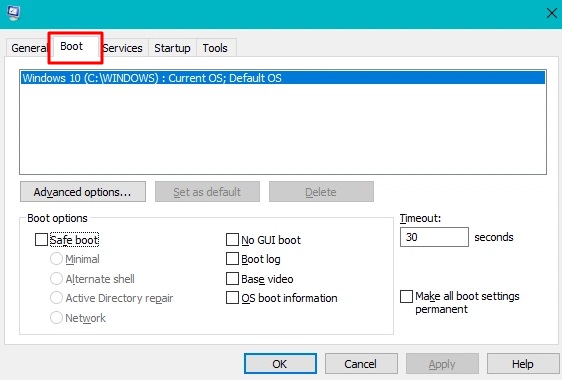
- Check Safe boot and select Minimal.
- Click Apply, then OK.
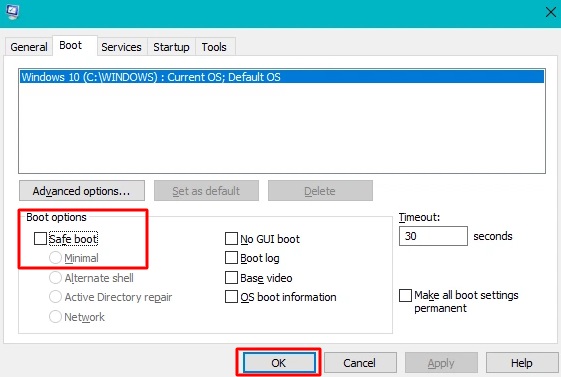
- Restart your computer.
- Once your system starts in Safe Mode, open Command Prompt as an administrator.
- Type the following command and press Enter:
- sfc /scannow
- Wait for the scan to complete without interrupting it.
Many users report that running SFC this way successfully fixes the Windows Resource Protection could not perform the requested operation error.
Also know: How to Fix Windows 0x80071AC3 Error: ‘Volume is Dirty’
Solution 2 – Check the Hard Drive for Errors
Hard drive issues such as bad sectors or file system errors can prevent Windows from accessing important system files. When Windows cannot read or write data properly, the SFC scan may fail and show errors. This situation can trigger the Windows Resource Protection could not perform repair message. Steps to run CHKDSK:
- Open Command Prompt as an administrator.
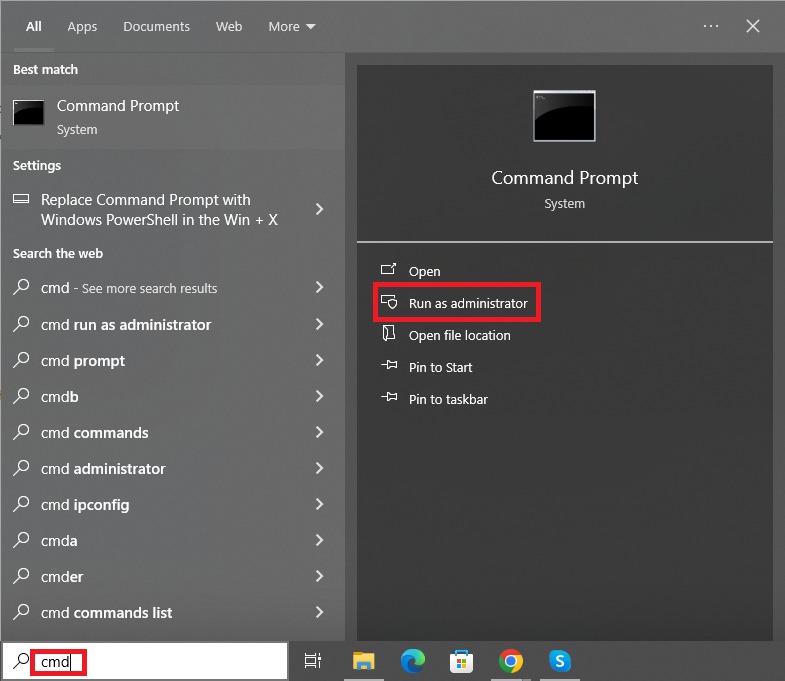
- Type the following command and press Enter:
- chkdsk C: /f
- Replace “C:” with the drive letter you wish to scan
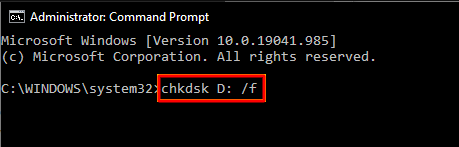
- If Windows asks to schedule the scan for the next restart, type Y and press Enter.
- Restart your computer to allow the disk check to begin.
- The scan may take some time depending on the size and condition of your drive.
- Once the scan is complete and any errors are fixed, try running the SFC scan again.
This method helps resolve issues where disk errors are stopping system file repairs.
Solution 3 – Enable Windows Module Installer Service
The Windows Module Installer service is required for installing, modifying, and repairing protected system files. If this service is disabled or not running, SFC cannot function correctly. This often results in the Windows Resource Protection could not start the repair service error. Steps to enable the service:
- Press Windows + R to open the Run dialog box.
- Type services.msc and press Enter.
- In the Services window, locate Windows Module Installer.
- Double-click on it to open the properties window.
- Set the Startup type to Automatic.
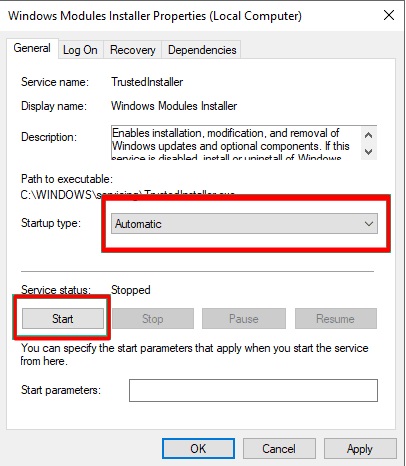
- Click the Start button if the service is not already running.
- Click Apply, then OK to save the changes.
- Once enabled, restart your computer if needed.
Without this service running, Windows Resource Protection could no longer repair protected system files properly. After enabling it, try running the SFC scan again to check if the issue is resolved.
Solution 4 – Use Automatic Repair
Automatic Repair is a built-in Windows tool designed to fix startup and critical system problems. It can repair issues that prevent Windows Resource Protection from working correctly. This method is helpful when system files or boot components are damaged. Steps to run Automatic Repair:
- Restart your computer while holding the Shift key.
- Release the key once the Advanced Startup menu appears.
- Click on Troubleshoot.
- Select Advanced options.
- Choose Automatic Repair from the list.
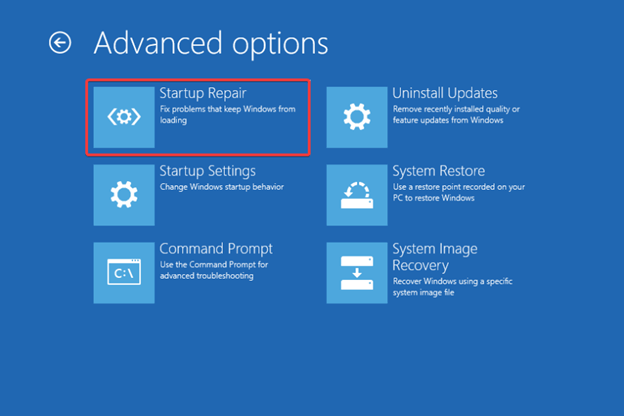
Windows will begin diagnosing your system and attempt to fix any detected problems. The process may take several minutes, depending on the issue. Once Automatic Repair finishes, allow Windows to boot normally. After startup, try running the SFC scan again to check if the problem has been resolved.
Solution 5 – Perform a System Restore
System Restore allows you to roll back your Windows system to a previous state without affecting your personal files. This is especially useful if the Windows resource protection could not perform error started occurring after recent updates, driver changes, or software installations. By restoring to an earlier point, you can undo system changes that may be causing the problem. Steps to perform a System Restore:
- Open the Start menu and search for Create a restore point.
- Click on the result to open the System Properties window.
- Click the System Restore button.
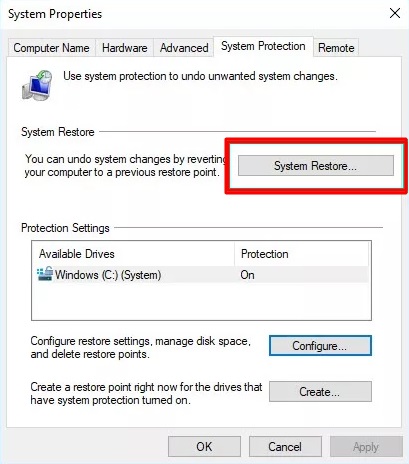
- Choose a restore point that was created before the error started appearing.
- Click Next, then click Finish to start the restoration process.
- Your computer will restart and begin restoring Windows to the selected point.
- The process may take several minutes, so be patient and do not interrupt it.
- After the system restore completes, Windows will boot normally.
Try running the SFC scan again, as this method often resolves the Windows Resource Protection could not perform errors caused by recent system changes.
Also know: How to Fix Wsappx High CPU Issue in Windows
Solution 6 – Reset or Reinstall Windows
If all other solutions fail and the Windows resource protection could not perform the requested operation error keeps appearing, resetting or reinstalling Windows may be the only option. This method provides a clean start by removing corrupted system files, broken settings, and persistent issues that other fixes cannot resolve. Benefits of resetting or reinstalling Windows:
- Removes deep system corruption that may be affecting Windows Resource Protection.
- Fixes repeated SFC repair failures that cannot be corrected by other methods.
- Improves overall system performance by eliminating unnecessary files, bloatware, and conflicting software.
- Saves time compared to continuously troubleshooting multiple system errors.
- You can choose to reset Windows while keeping your personal files, or perform a full clean installation for a completely fresh system.
- This should be considered the final option if SFC Scannow doesn’t work under any circumstances.
After resetting or reinstalling, the system will be stable, and protected files can be scanned and repaired without encountering the error again.
The Windows resource protection could not perform the requested operation error can be frustrating, but it is not impossible to fix. This problem usually occurs when Windows cannot access or repair protected system files.
By carefully following the solutions above, you can fix the issue in most cases. If Windows resource protection continues to fail, resetting Windows is the safest final solution.